Help
DataGrid
How to use DataGrid Bulk Editor for ServiceM8
What is DataGrid?
DataGrid gives you a spreadsheet-style view of every asset on a site in ServiceM8, organised by asset type. Instead of opening each asset one at a time, you can view, edit, and export them all from a single screen. Select one, some, or all assets and update fields in bulk — then export the lot to CSV if you need it offline.
Getting Started
Step 1: Enable the addon
In ServiceM8, go to Account → Addons. You'll see a list of your installed addons. Look for DataGrid Bulk Editor with the blue DG icon.
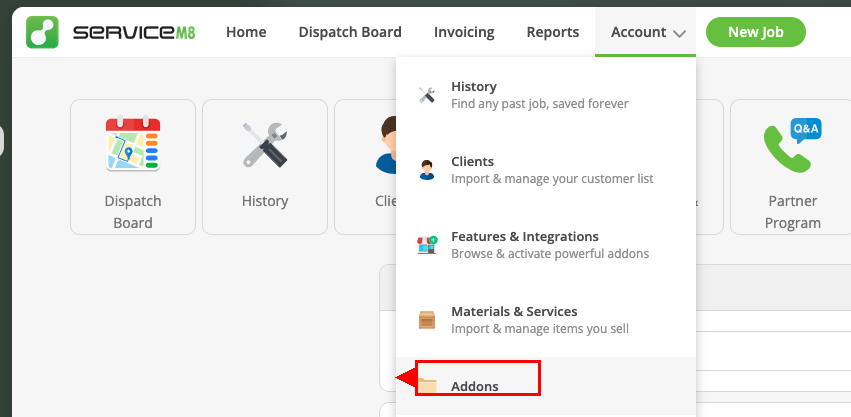
If you don't see it listed, use the link below to install it directly.
Step 2: Open DataGrid
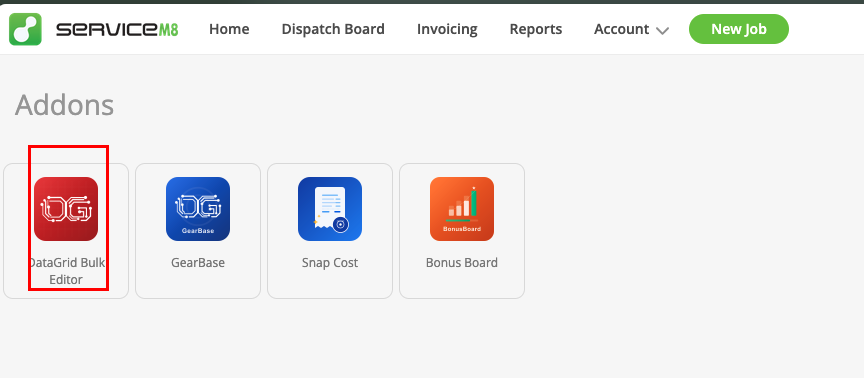
Once installed, click DataGrid Bulk Editor from the Addons page. It will open and show you the main screen.
Step 3: Choose an asset type
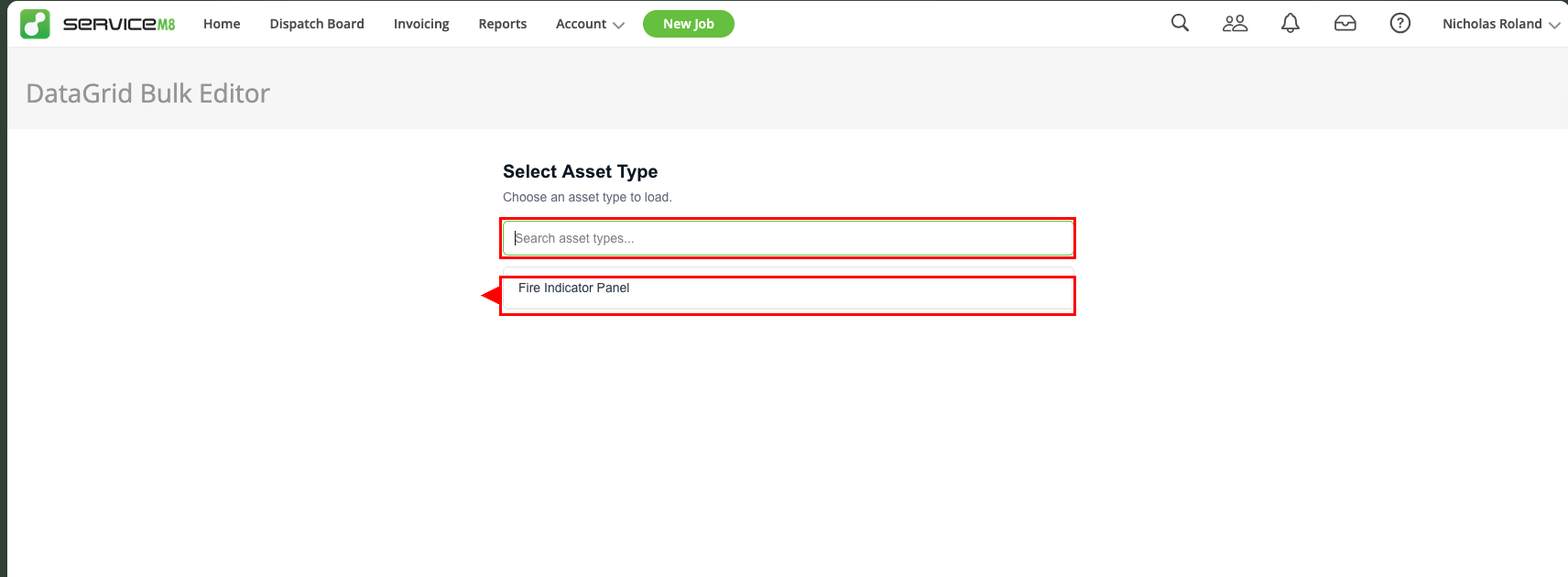
You'll see a list of all asset types in your ServiceM8 account. Use the search bar to filter, or scroll through and click the one you want to work with.
Step 4: Select a site
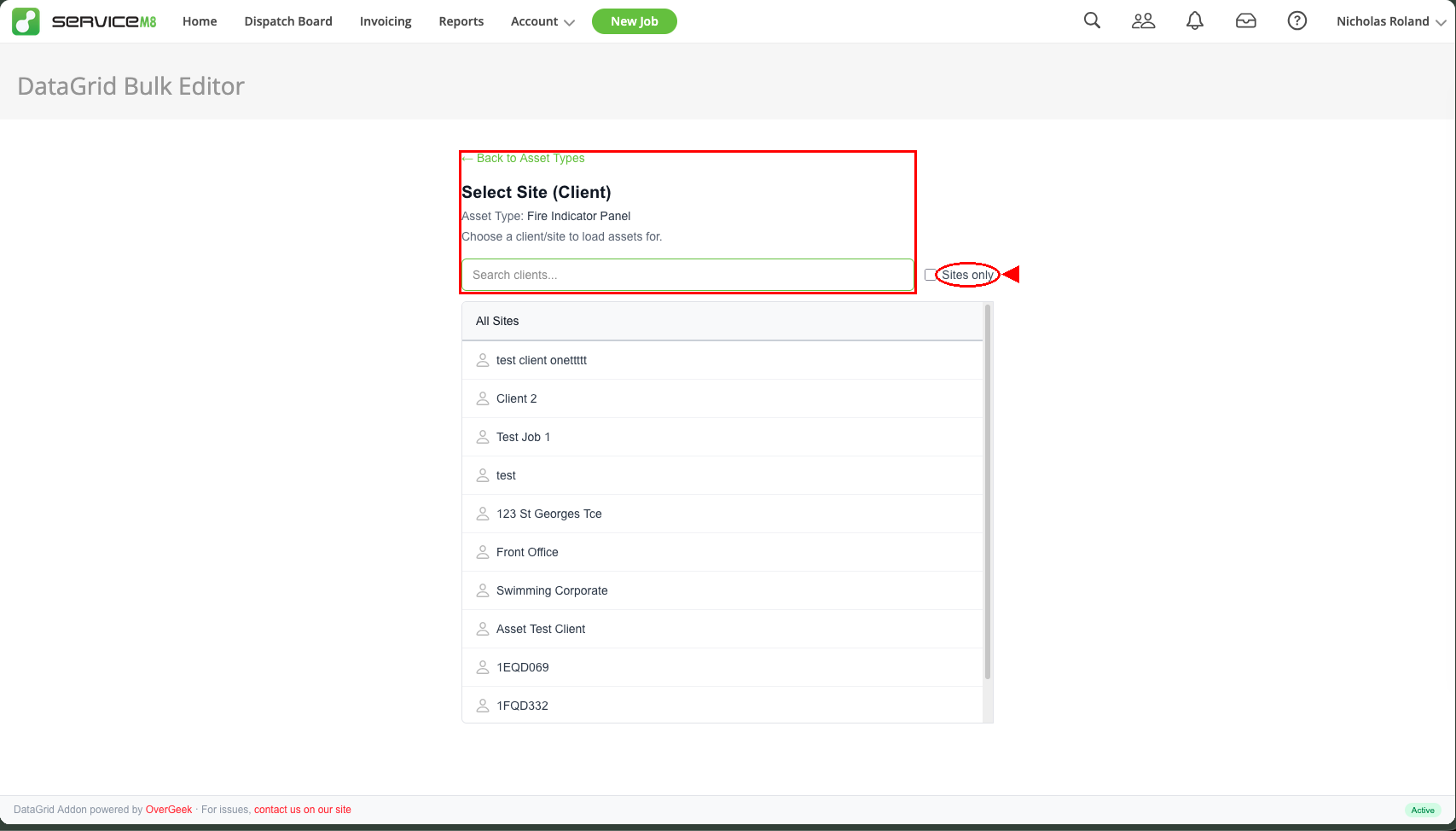
After choosing an asset type, you'll be asked to pick a client or site. Search by name, or tick Sites only to filter out individual clients and show just site locations. Click a site to load its assets.
Using the Grid
Viewing assets
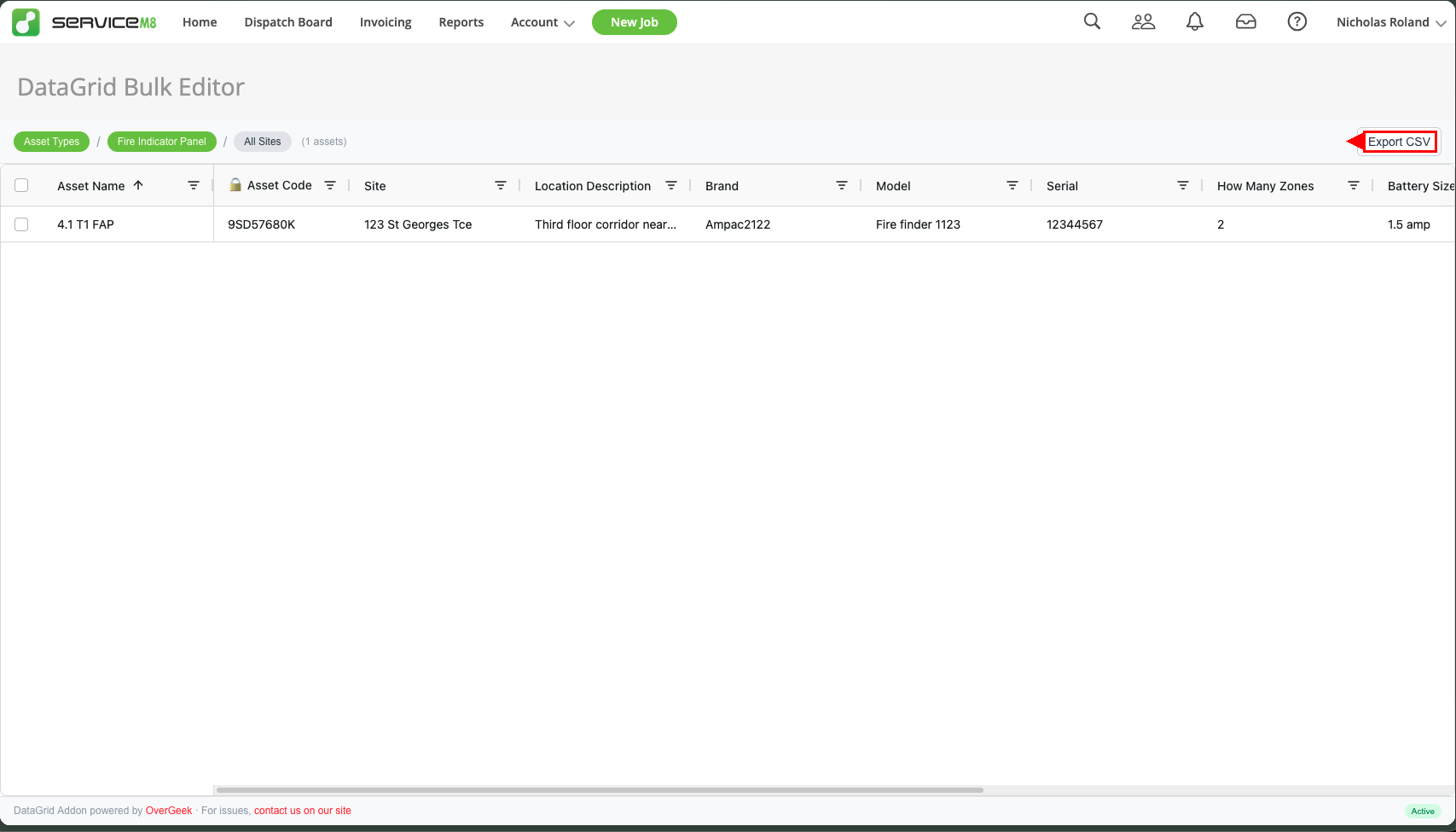
All assets for the selected site and type are displayed in a familiar spreadsheet layout. Each row is an asset, and each column shows a field — asset name, asset code, site, location, brand, model, serial, and any other fields configured for that asset type.
Editing a field
Click any cell in the grid to edit it directly. The cell will highlight and you can type a new value. You can also select multiple assets using the checkboxes, or shift-click to select a range of rows and edit them all at once. When you've made changes, you'll see a notification at the bottom showing how many unsaved changes you have, along with Discard and Save All buttons.
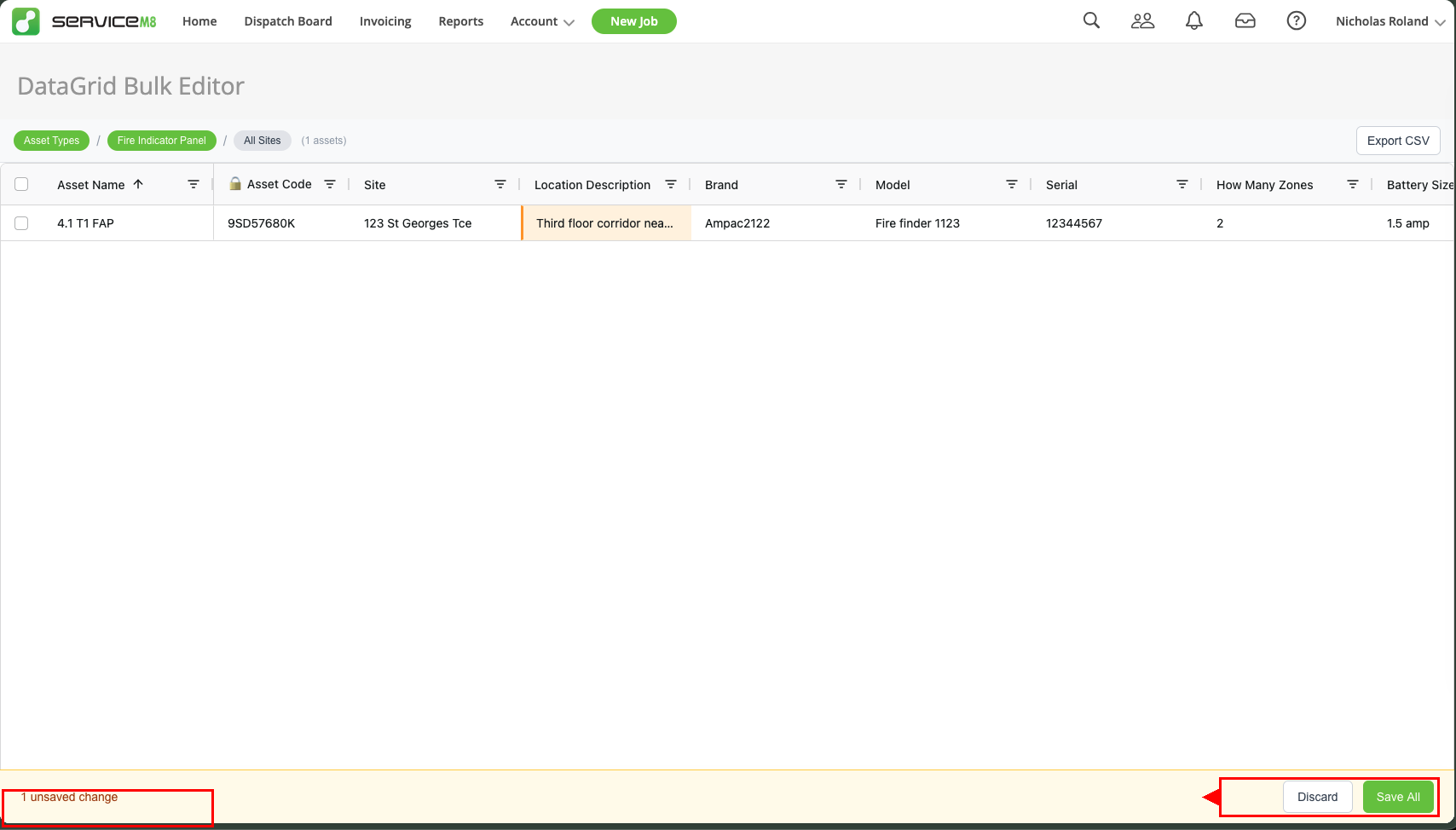
Click Save All to push your changes back to ServiceM8, or Discard to undo them.
Exporting to CSV
Click the Export CSV button in the top right corner of the grid. This downloads a CSV file containing all the asset data currently displayed — ready to open in Excel, Google Sheets, or any spreadsheet app.
Tips
- Use the Back to Asset Types link at the top to switch to a different asset type without reloading the page
- The grid shows all fields for the selected asset type — scroll right if you have many custom fields
- Select multiple rows with checkboxes or shift-click to select a range, then edit a field to apply the change across all selected assets
- Changes are only saved when you click Save All — you can safely edit multiple cells before committing
- Export is great for reporting, audits, or keeping an offline backup of your asset register
- DataGrid works best on desktop for the full spreadsheet experience
Need Help?
If you run into any issues or have questions, get in touch and we'll sort you out.