Help
PDF Stacker
How to use PDF Stacker for ServiceM8
What is PDF Stacker?
PDF Stacker lets you quickly select, reorder, and combine multiple PDF attachments on a job into a single document. No more juggling separate files — just pick your PDFs, arrange them in the order you need, and export one clean merged file straight back to the job card.
Getting Started
Step 1: Enable the beta addon
PDF Stacker is a free beta addon. Enable it using the link below — look for the icon shown here.
Step 2: Open it from a job
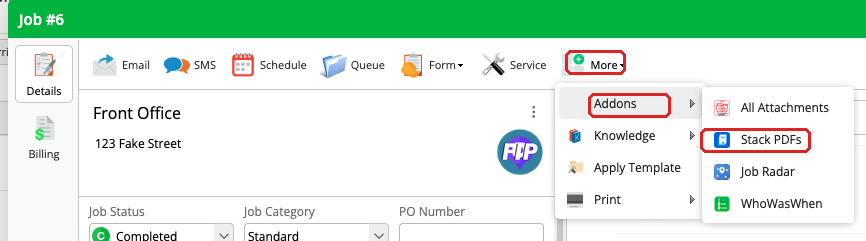
Navigate to any job in ServiceM8. Click More in the toolbar, then hover over Addons to reveal the submenu. Click Stack PDFs to open the addon.
Step 3: Select your PDFs
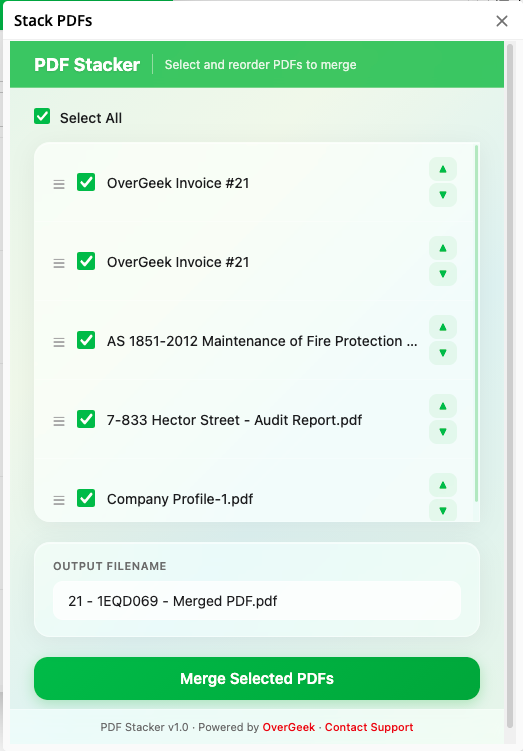
The addon will list all PDF attachments on the current job. Use the checkboxes to select the ones you want to merge, or hit Select All to grab them all.
Step 4: Reorder and merge
Use the arrow buttons to rearrange the PDFs into the order you need. When you're happy, click Merge Selected PDFs. The merged document is saved straight back to the job card as a new attachment.
Tips
- Works best with standard documents like forms, certificates, and compliance sheets
- Very large or graphics-heavy PDFs may not merge as expected
- The merged file appears as a new attachment on the job — your originals are untouched
- Works on desktop and the ServiceM8 mobile app
Need Help?
If you run into any issues or have questions, get in touch and we'll sort you out.