Help
Billfold
How to consolidate multiple ServiceM8 jobs into one tidy invoice
What is Billfold?
Billfold lets you roll several completed ServiceM8 jobs into a single new consolidated invoice job. Pick the work, tick the jobs you want bundled, and Billfold builds a fresh job that contains every line item from every source job — grouped under a heading per source job so the customer can still see what they’re paying for.
The source jobs are zeroed out with an offsetting CONINV line and noted with a pointer to the new job, so nothing is ever invoiced twice. Your records and history stay intact.
Trial & billing
- Every new install gets a 7-day free trial — no credit card up front.
- After the trial, Billfold is $8.99 AUD/month, billed externally from ServiceM8 via Over Geek.
- Open Billfold in ServiceM8 and use the Settings / Manage billing link to set up or update your payment.
- If you don’t add billing details before the trial ends, Billfold quietly stops letting you build new consolidated jobs. Anything already built stays in ServiceM8 as normal.
- Cancel anytime from the Manage billing portal. Cancelling never affects your ServiceM8 data.
Opening Billfold
Step 1: Open the Addons page
In ServiceM8, go to Account → Addons. Billfold appears alongside your other installed add-ons.
Step 2: Open Billfold
Click Billfold (Consolidated Invoicing). You’ll land on the four-step wizard.
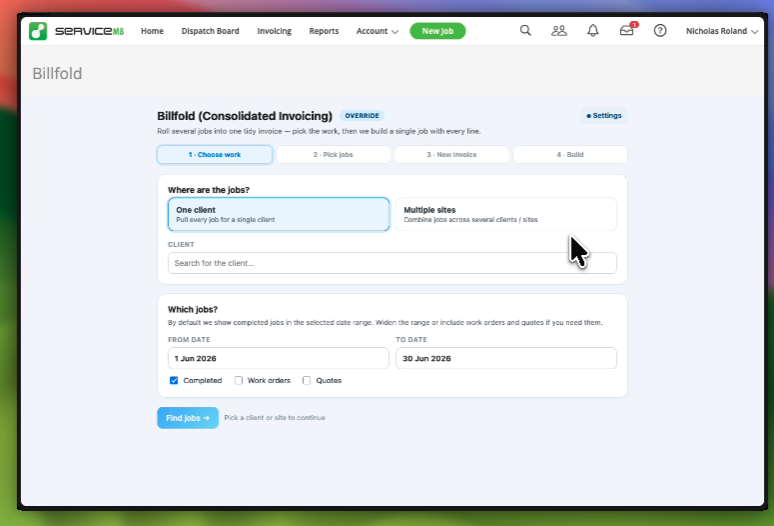
Step 1 — Choose the work
Billfold needs to know which jobs to look at. There are two modes:
- One client — pull every job for a single client (search and pick the client below).
- Multiple sites — pull jobs across several sites that share a parent client. Pick the parent client, then tick the sites you want included.
Then set the date window with From date / To date. By default Billfold only includes Completed jobs — if you want to roll in Work orders or Quotes as well, tick the matching checkboxes.
When you’re ready, click Find jobs →.
Step 2 — Pick the jobs
Billfold shows every matching job with its job number, value, description, completion date and status.
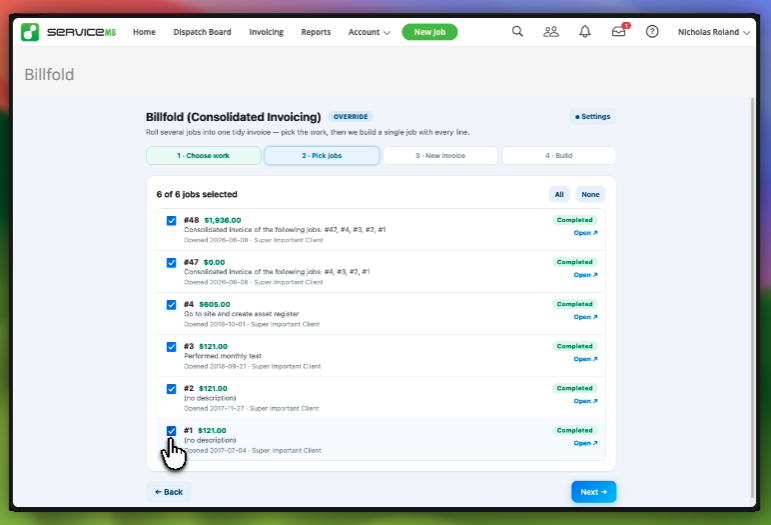
- Tick the jobs you want to consolidate. Use All / None for fast bulk select.
- The counter at the top (“X of Y jobs selected”) tells you exactly how many will be rolled up.
- Each row has an Open link — click it to jump into the source job in a new tab if you need to double-check anything.
Click Next → when you’re happy with the selection.
Step 3 — Set up the new invoice
This is where you configure the brand-new ServiceM8 job that will hold the consolidated invoice.
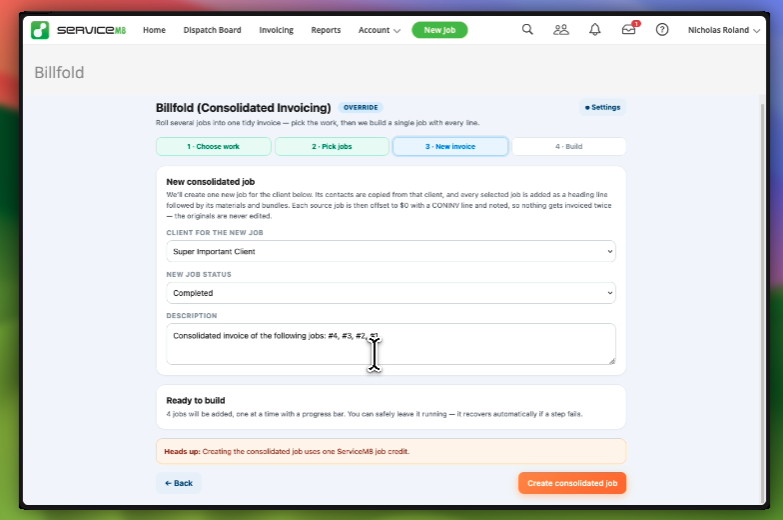
- Client for the new job — defaults to the client you searched in step 1. Billfold copies the client’s contacts straight onto the new job.
- New job status — usually Completed if you’re ready to invoice straight away. You can also set it to Quote or Work Order if you want to review before billing.
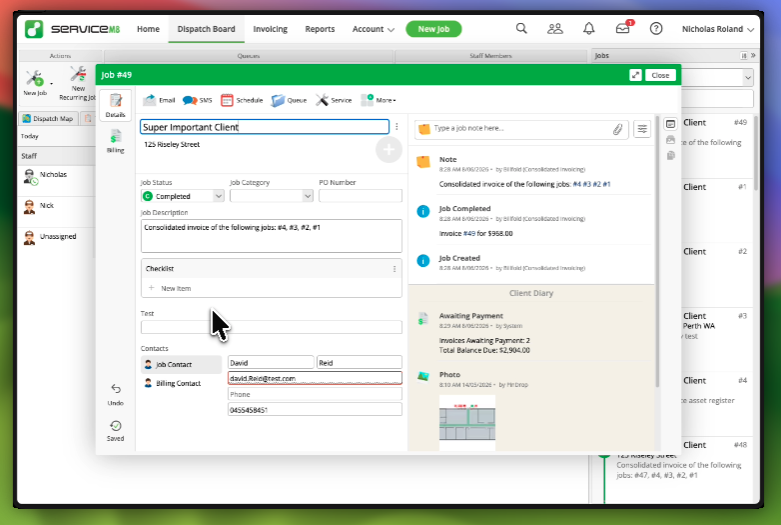
- Description — pre-filled with the source job numbers (e.g. “Consolidated invoice of the following jobs: #4, #3, #2, #1”). Edit it freely — this is what the customer will see on the invoice.
The page also reminds you that creating the new job uses one ServiceM8 job credit. When you’re ready, click Create consolidated job.
Step 4 — Watch it build
Billfold creates the new job, then walks through each source job one at a time, copying its line items in as a labelled group.
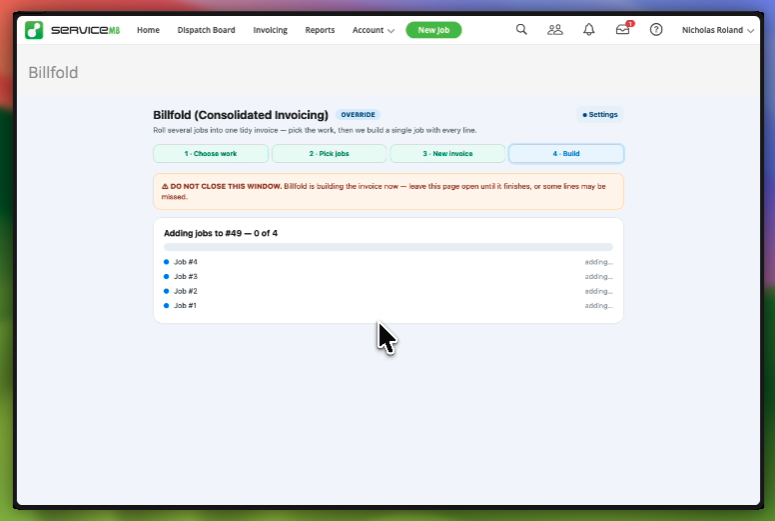
Don’t close the window while it’s building. If you do, you may end up with a partially-built consolidated job — if a single step fails along the way, Billfold recovers automatically as long as the page stays open. You’ll see the progress bar tick across as each source job is added.
When the build is finished, you’re left with one tidy new ServiceM8 job containing:
- A heading line for each source job (e.g. “Job #48 — $1,936.00”) followed by all that job’s materials and bundles.
- The customer’s contacts copied across.
- The description you set in step 3.
What happens to the source jobs?
Each source job is updated in two small, traceable ways:
- A single CONINV line item is added that offsets the job total to $0. This is the safeguard against double-billing — the work’s value now lives on the new consolidated job, not on the source.
- A note is added to the source job pointing to the new consolidated job number (e.g. “Consolidated into job #49”), and the new job’s diary references the source job numbers in turn. So you can trace it both ways.
Everything else on the source jobs — existing line items, materials, bundles, photos, notes, forms — is left exactly where it was. Source jobs are never deleted or unlocked.
Tips
- Multiple sites mode is great for property managers or facilities companies who want one monthly invoice covering several sites of the one client.
- Set the new job status to Quote if you want to review the consolidated lines before sending the invoice — you can flip it to Completed once you’re happy.
- You can edit the auto-populated description before clicking Create consolidated job — great for adding a billing period reference (e.g. “June 2026 maintenance — jobs #4, #3, #2, #1”).
- Source jobs are still searchable in ServiceM8 with their original numbers — nothing is hidden.
- If you accidentally tick the wrong jobs in step 2, just hit ← Back and adjust before building.
Need Help?
If you run into any issues or have a billing scenario you’re not sure Billfold handles, get in touch.