Help
AssetWagon
How to use AssetWagon for ServiceM8
What is AssetWagon?
AssetWagon is a free ServiceM8 add-on that exports your asset data. Send it to an Excel spreadsheet for analysis, or to a KML map file for Google Earth and similar viewers. It's read-only and never modifies anything in your ServiceM8 account.
Not in the Add-on Store yet
AssetWagon isn't in the ServiceM8 Add-on Store yet, but you can install the beta directly with the button below. We're planning to submit it to the store soon, so once it lands there you'll be able to install it from inside ServiceM8 as well.
Enable Beta VersionBefore You Start
To use AssetWagon you'll need:
- ServiceM8's Asset Management add-on enabled on your account
- At least one active client or site
- At least one asset type with some assets recorded against it
Installing
Click the install link above, then approve the requested permissions (read clients, read assets, vendor info). AssetWagon doesn't write back to ServiceM8, so its permissions are read-only.
Opening AssetWagon
After installing, AssetWagon appears in the main Add-ons section of ServiceM8. It doesn't attach to individual jobs or clients. Click it to open the wizard in a new window.
Step 1: Choose Sites
The first screen lists all your active clients and sites.
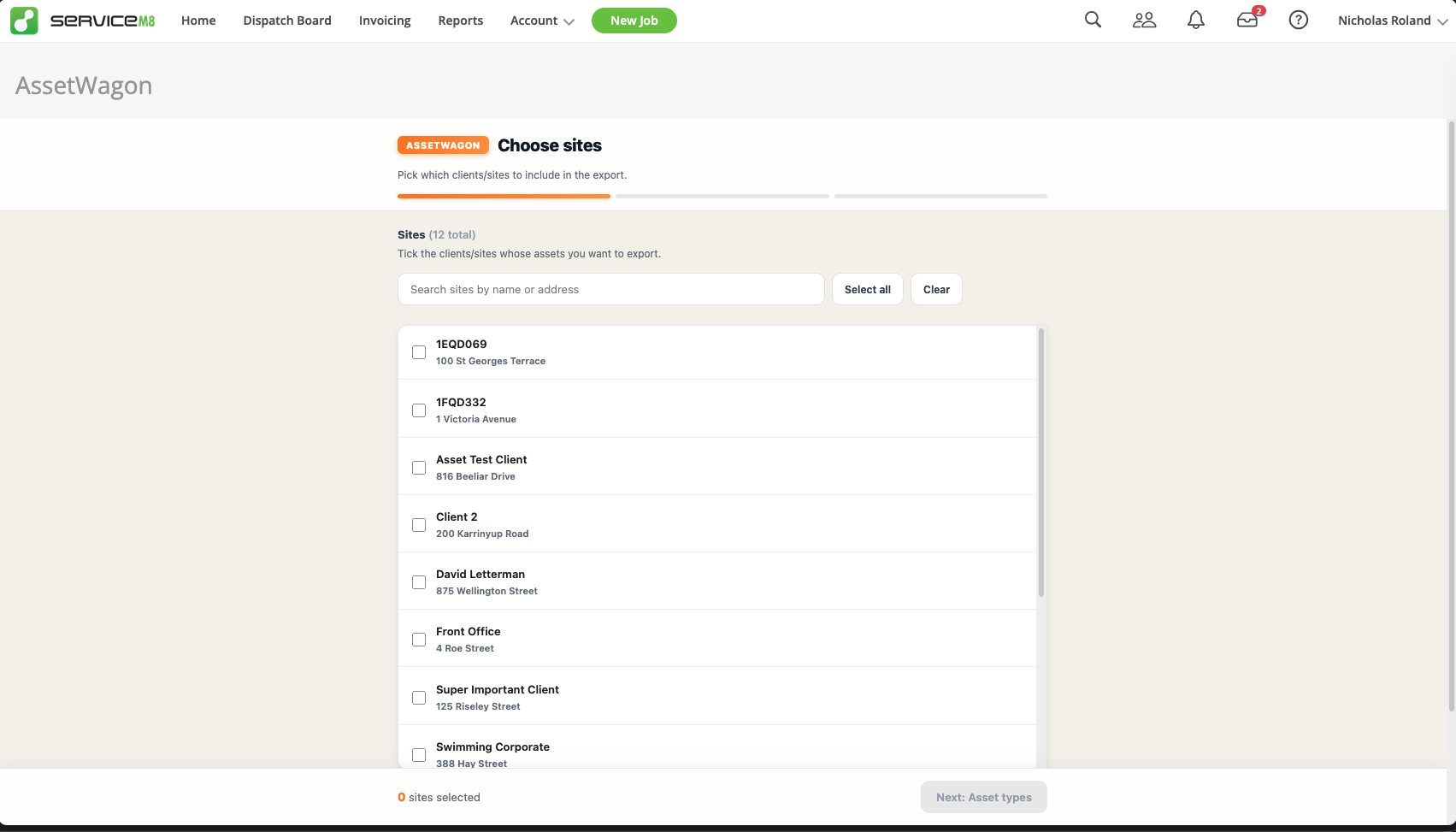
- Search box: type any part of the name or address to filter the list.
- Select all: ticks every site currently visible. Combine with the search box to bulk-pick a group (e.g. type "Perth" then Select all).
- Clear: unticks every visible site.
The counter at the bottom shows how many sites you've selected. When you're ready, click Next: Asset types.
Step 2: Choose Asset Types
Pick which asset types to include in the export. Each row shows the type name, how many fields it has, and a preview of the first few field names.
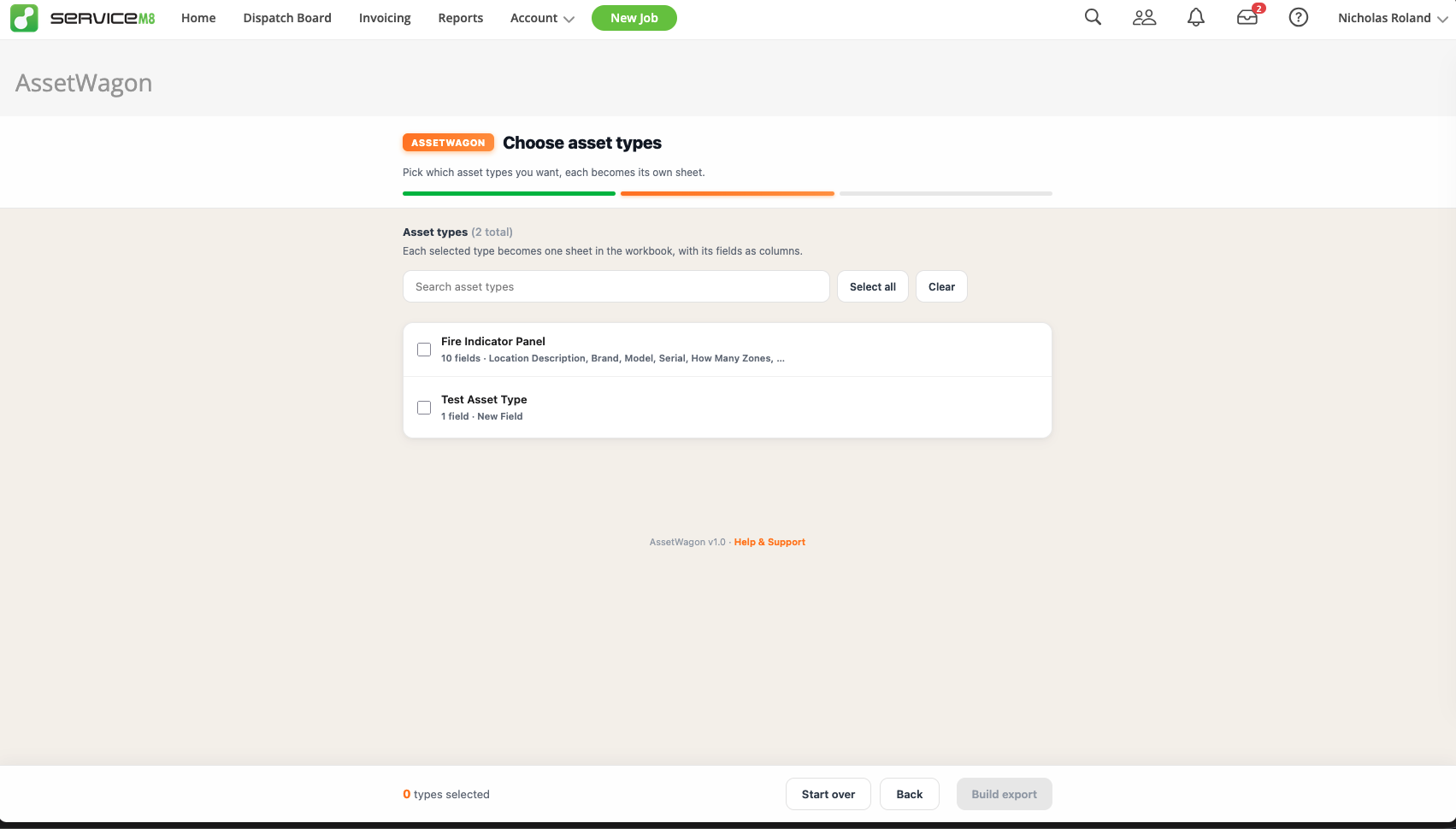
Each type you select becomes its own sheet in the Excel workbook, or its own folder of pins in the KML map. Click Build export when ready.
Step 3: Download
AssetWagon gathers all the matching assets and shows you a summary card: total assets, number of sheets or folders, and number of sites. Below that, a breakdown of how many assets and field columns each type has.
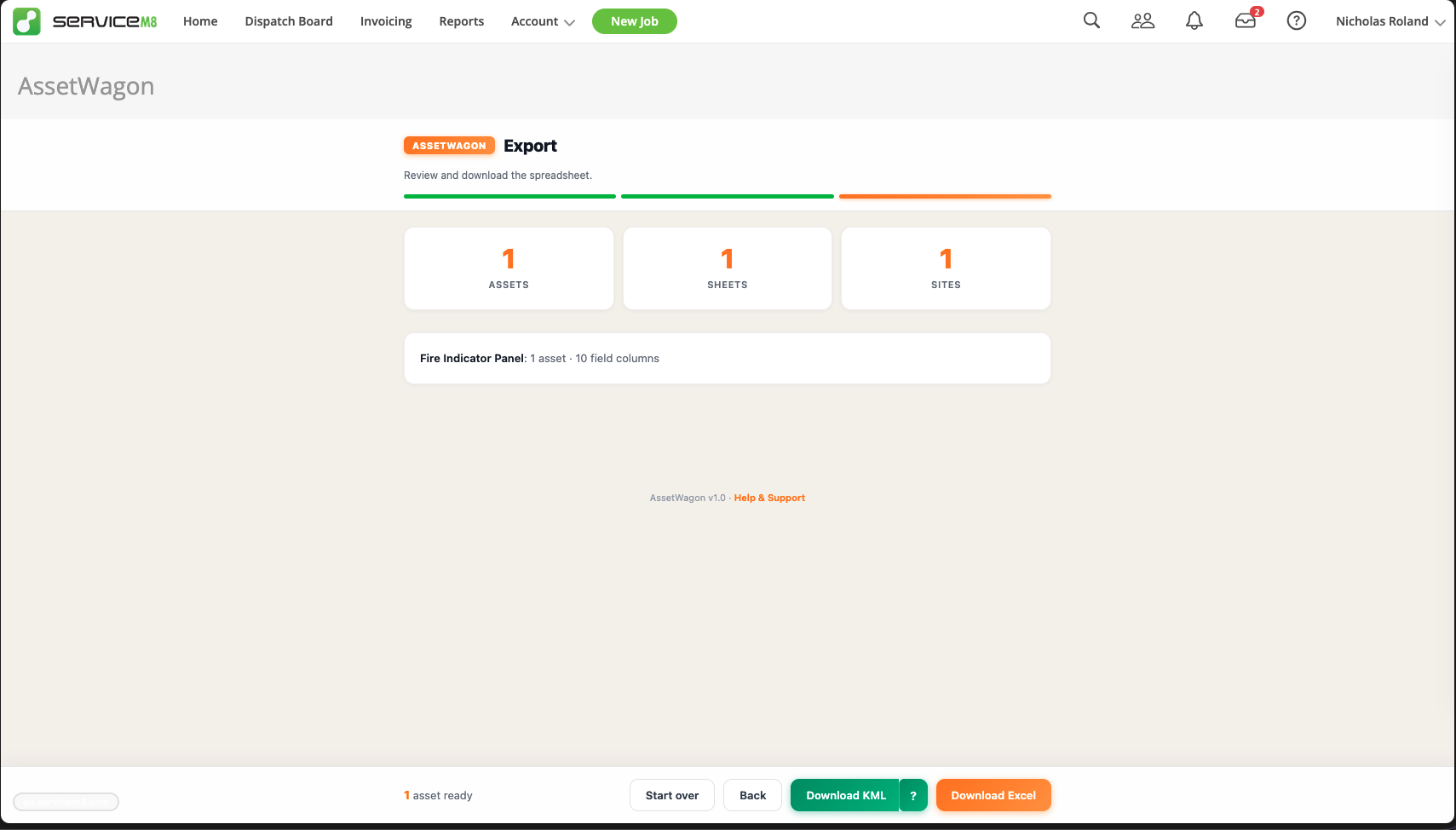
You now have two export options.
Download Excel
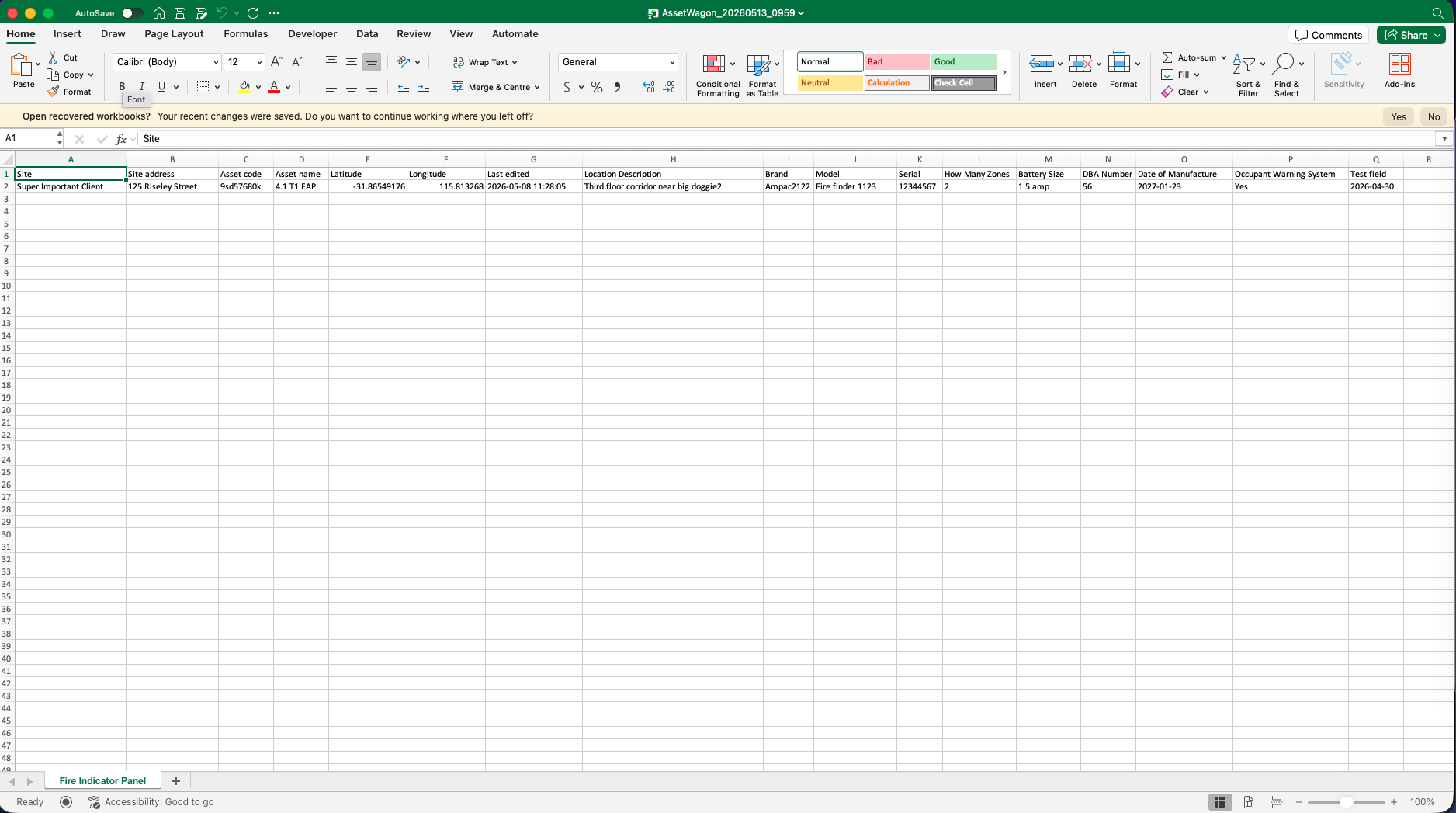
Generates a single .xlsx file with one sheet per asset type. Each sheet contains these core columns first:
- Site
- Site address
- Asset code
- Asset name
- Latitude
- Longitude
- Last edited
Followed by every custom field defined on that asset type, each as its own column. Column widths are auto-fitted, and sheet names are sanitised to be Excel-safe.
Download KML
Generates a Google Earth-compatible map file. Each asset becomes a coloured pin. Same colour means same asset type, every time. The colour is deterministic from the type's ID, so it's consistent across exports.
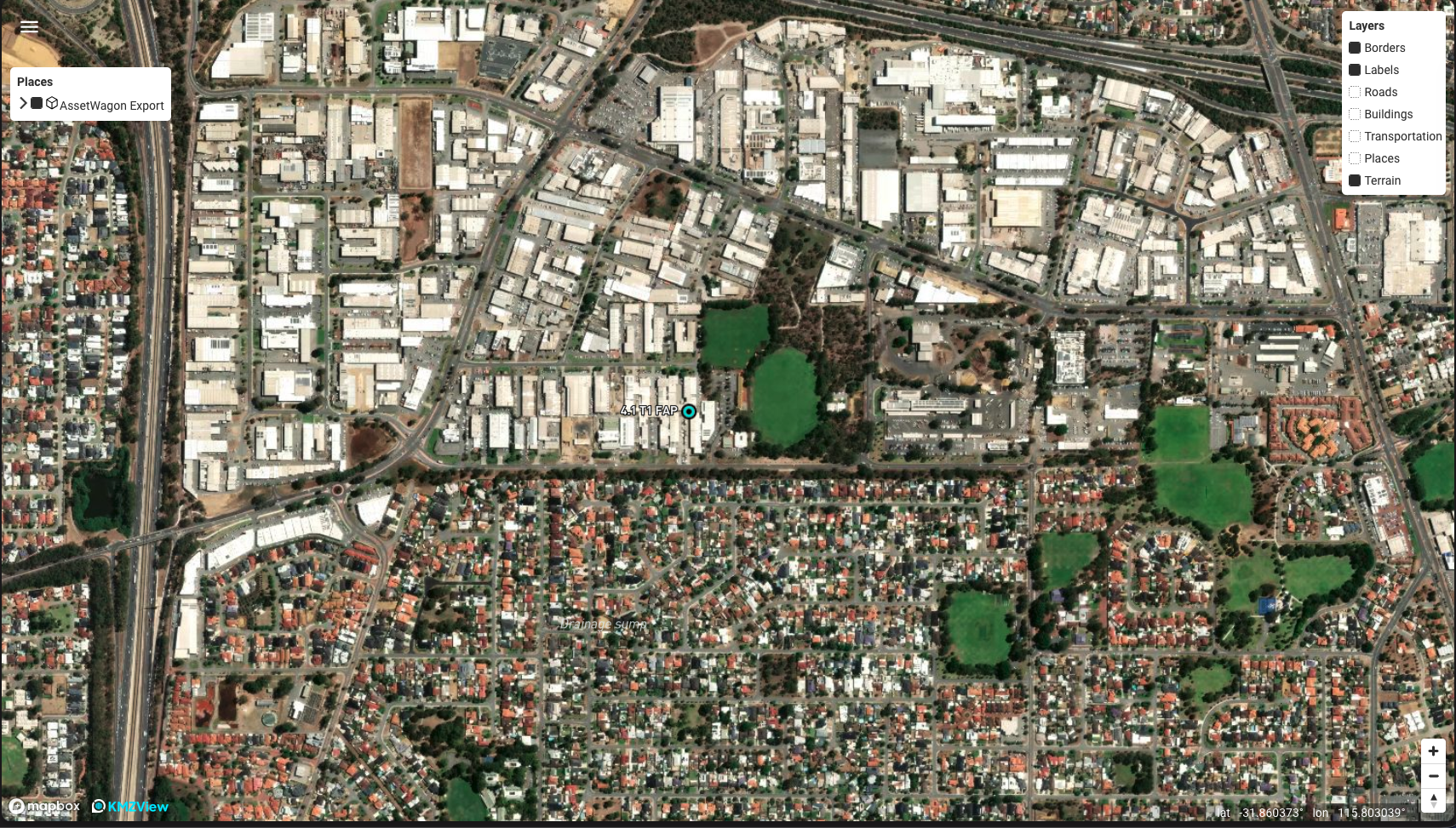
The pin name is the asset name. Click any pin to see a clean detail table with every field on that asset.
Each type lives in its own folder in the KML, so viewers like Google Earth let you tick types on and off independently. Click the ? beside the KML button for quick links to viewers.
Note: Assets without lat/lng coordinates are skipped from the KML (they can't be placed on a map). They still appear in the Excel export. If none of your assets have coordinates, AssetWagon will tell you instead of producing an empty file.
Helpful Buttons
- Start over: clears your selections and returns to step 1. Use this for a fresh export with different sites or types.
- Back: goes back a step but keeps everything you'd already picked, so you can tweak a selection without losing the rest.
Filenames
Files are named with a timestamp so you can keep multiple exports side by side:
AssetWagon_20260513_1430.xlsxAssetWagon_20260513_1430.kml
Where to Open the KML
- Google Earth: free, available as a web app or desktop app. Just open the file.
- Google My Maps: import the KML as a new layer to share with your team.
- kmzview.com: quick online preview, drag the file in, nothing to install.
Any KML-compatible tool works, including QGIS, MapInfo and ArcGIS.
Troubleshooting
"No active asset types found"
Your ServiceM8 account doesn't have the Asset Management add-on enabled, or no asset types have been created yet. Go to ServiceM8 → Account → Add-ons and ensure Asset Management is on.
"No assets matched your selection"
None of your selected sites have assets of the selected types. Widen either the site or the type selection.
"None of the assets have valid coordinates" (KML only)
Your assets don't have lat/lng recorded. Assets get coordinates when they're created or edited in the ServiceM8 mobile app with location services enabled. Re-scan them on-site to add coordinates.
The export feels slow
AssetWagon pulls all your active assets in one request to keep things simple. With thousands of assets, the gather step can take 10 to 30 seconds. Just wait, don't close the window.
Need Help?
If you run into any issues or have questions, get in touch and we'll sort you out.