Help
Punch Clock
How to run staff timesheets in ServiceM8 with Punch Clock
What is Punch Clock?
Punch Clock turns the clock on / lunch / clock off punches your crew already makes in the ServiceM8 app into a real timesheet. Shifts and job-recorded time sit side by side on a timeline, totalled for your pay period, with adjustments staff can request and you approve — then the whole period exports to Excel for payroll.
It stores no separate database of your hours. Everything is read live from ServiceM8 each time you open it.
Before you start
- Your staff need to be clocking on and off in ServiceM8 — Punch Clock reads those punches rather than recording its own. If they already do, there’s nothing to migrate.
- Nothing changes for your technicians. They keep clocking on the same way.
- Install it and this pay period is already populated.
Trial & billing
- Every new install gets a 7-day free trial — no credit card required up front.
- After the trial, Punch Clock is $5.99 AUD/month per ServiceM8 company, billed externally from ServiceM8 via Over Geek.
- Open Punch Clock and use the Settings → Manage billing link to set up or update your payment.
- If you don’t add billing details before the trial ends, Punch Clock stops opening. Your ServiceM8 clock data, job time and staff notes are never affected.
- Cancel anytime from the Manage billing portal. Cancelling never affects your ServiceM8 data.
Stop billing before you uninstall
ServiceM8 doesn’t notify us when you uninstall an add-on, so uninstalling on its own doesn’t cancel your subscription. Cancel first from the Manage billing portal — or email [email protected] a few business days before your next charge and we’ll cancel it for you.
Opening Punch Clock
Punch Clock is account-wide rather than attached to a job. After installing, find it under Account → Add-ons → Punch Clock in ServiceM8, or in the More menu of the ServiceM8 mobile app.
First time in, a short setup wizard confirms your timezone, pay period and lunch rules. Everything else has a sensible default — it takes about two minutes.
Reading the timesheet
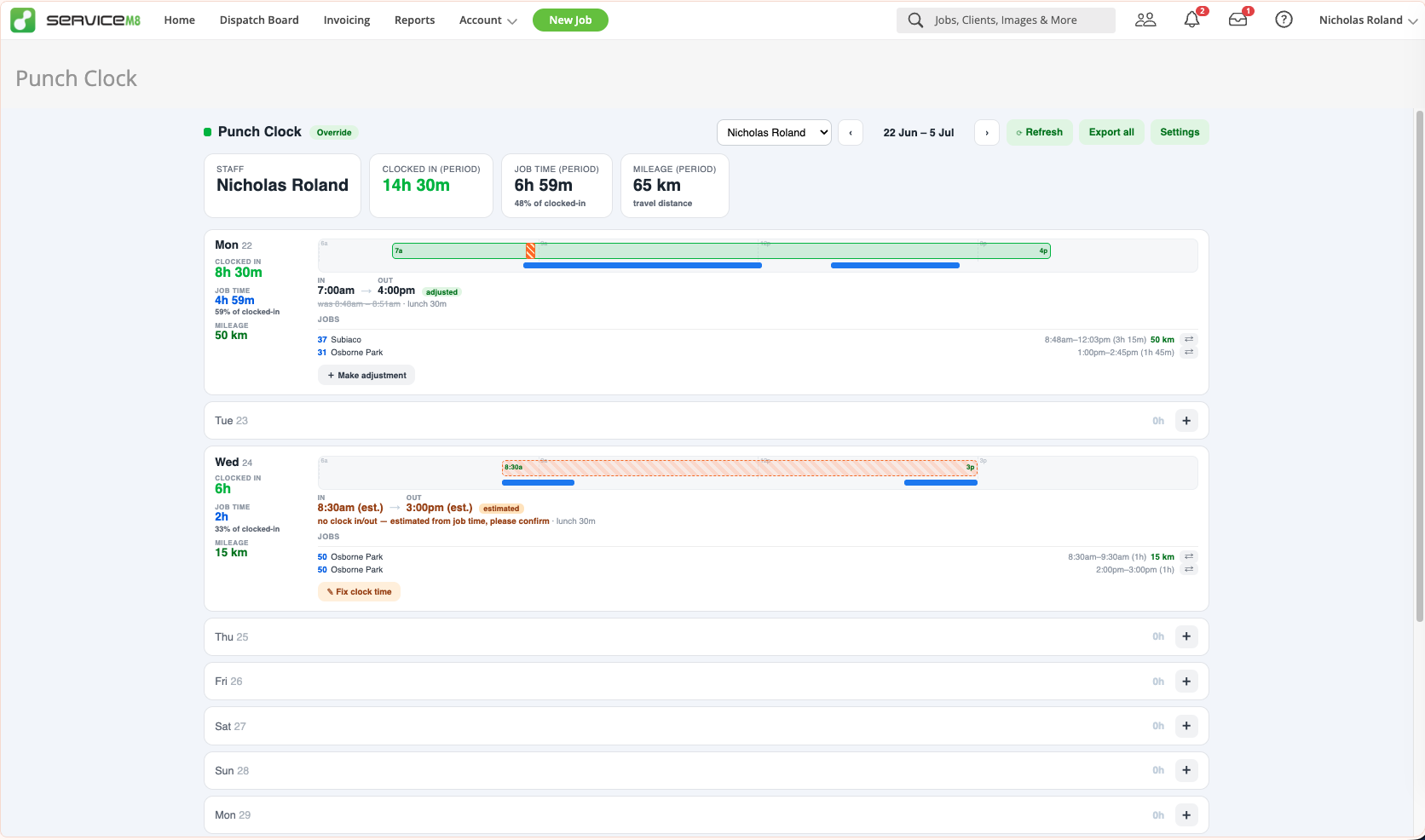
Pick a staff member from the dropdown and page through pay periods with the ‹ / › arrows. Across the top you get the period totals:
- Clocked in (period) — total shift hours from the punches.
- Job time (period) — total time recorded against jobs, plus what percentage of the clocked-in hours that is.
- Mileage (period) — travel distance, if you’re reading km from a form (see below).
Each day below shows its own totals down the left, then a timeline: the green bar is the clocked shift, the blue bars underneath are time recorded against jobs. Every job on the day is listed with its start, finish and duration.
Week view vs day view
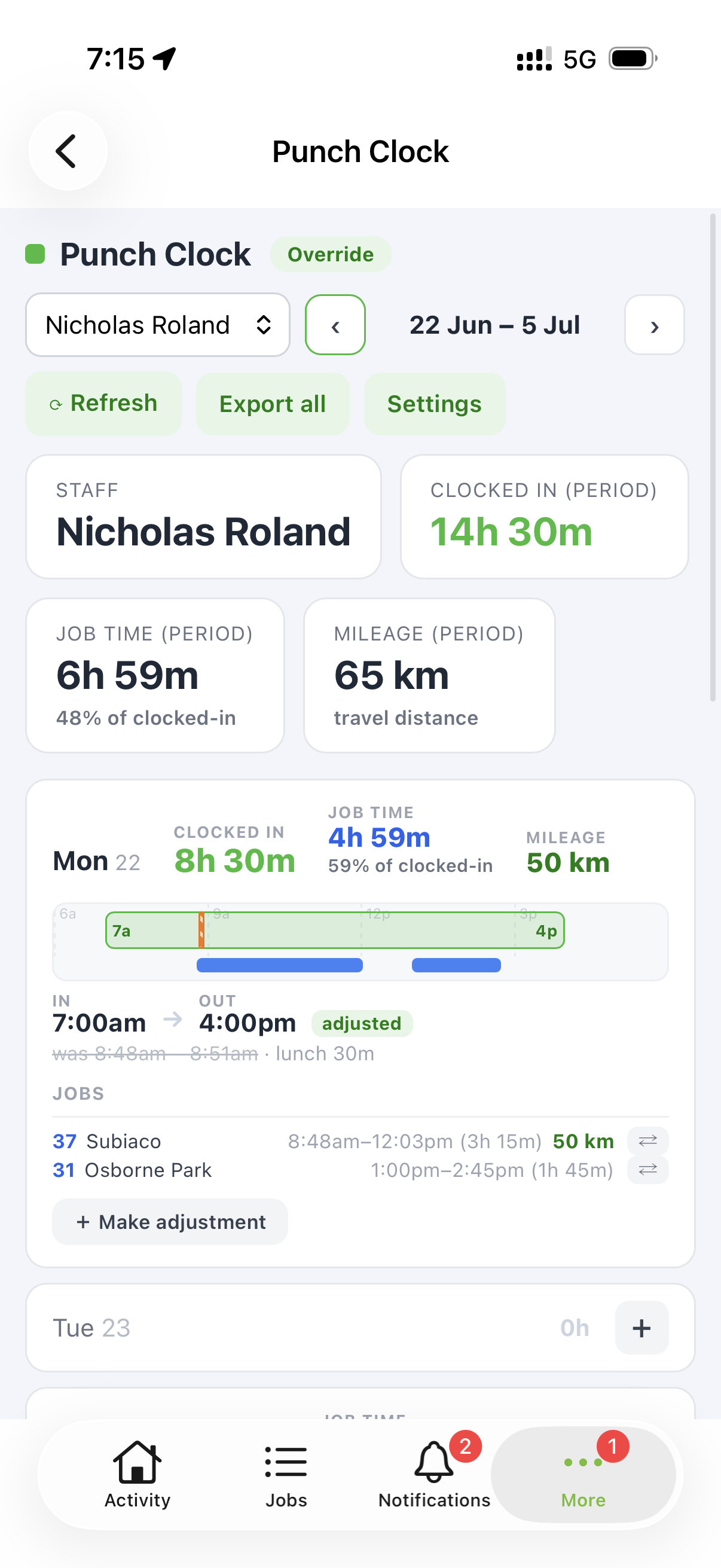
On desktop you get the full week timeline. In the ServiceM8 mobile app you get a day view of the same data, so a technician can check their own hours on the truck.
Making an adjustment
Someone forgot to clock on after smoko, or clocked off an hour late? Hit + Make adjustment on the day.
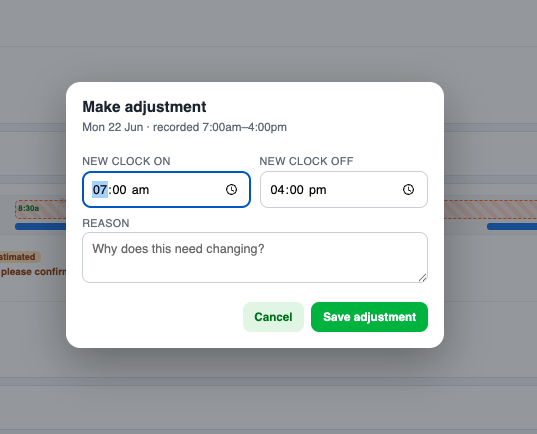
- Set the new clock on and new clock off times.
- Write a reason — this is what the approver sees, so “forgot to clock on after lunch” beats “wrong”.
- Click Save adjustment.
What happens next depends on who you are:
- Technicians raise a request. It sits pending until an owner or manager approves or declines it.
- Owners and managers can fix a time outright — no approval step.
Once applied, the day is badged adjusted and the original time is struck through underneath, so there’s a full paper trail of what changed and why.
Estimated punches
If a day has job activity but no clock on / clock off recorded, Punch Clock estimates the shift from the first and last job activity of that day and badges it estimated, with an orange dashed bar and the note “no clock in/out — estimated from job time, please confirm”.
Click Fix clock time on that day to turn the estimate into a confirmed time. This means a forgotten punch never becomes a blank row at payroll time — but it’s always clearly labelled rather than passed off as a real punch.
Settings
Click Settings in the top right. The things worth knowing:
- Pay period — weekly, fortnightly or monthly, anchored to the date your pay run starts (not a fixed calendar week).
- Lunch — paid or unpaid; a fixed break, or auto-deducted after a set number of hours. Job time that overlaps the break is reconciled, so totals never come out over 100% of the shift.
- Who’s an admin — matched from ServiceM8 security roles, or named staff you nominate. Owners and managers see every staff member, change settings and approve requests; technicians see only their own timesheet.
- Hidden staff — staff you don’t roster can be hidden entirely so they never clutter the list or the export.
- Timezone — confirmed during setup, change it here if you ever need to.
Reassigning job time
Spot job time logged against the wrong job? Use the reassign control (⇆) on that job row in the timesheet to move it to another job — no digging through job cards to fix it.
Exporting for payroll
Click Export all and Punch Clock produces a multi-sheet Excel workbook for the whole pay period — one tab per staff member — ready to hand to your bookkeeper.
Worth doing first: approve any pending adjustment requests, and confirm any days badged estimated, so the numbers you export are the numbers you mean.
Mileage & cost from forms (optional)
If your team already enters kilometres or a job cost on a ServiceM8 form, Punch Clock reads those same answers per staff member and totals them alongside the hours — shown on the timeline and included in the Excel export.
This pairs with the Formula (Travel Billing) add-on, but it’s entirely optional — Punch Clock works fine without it. If you’re not capturing km on a form, the mileage tile simply won’t show anything.
Where your data lives
- Hours — read live from ServiceM8 every time you open Punch Clock. Never copied into a shadow database.
- Adjustments — saved as ServiceM8 staff notes, so the record stays with the staff member in ServiceM8.
- Settings — your pay period, lunch rules, admin roles and hidden staff live on Over Geek’s server. That’s it.
Tips
- Approve adjustments before you export, not after — the export reflects whatever the timesheet says at the moment you run it.
- Chase the orange estimated days first. They’re the ones most likely to be wrong at payroll.
- Get your lunch rule right once in Settings and you’ll stop hand-deducting breaks forever.
- Hide staff you don’t roster (subbies, inactive accounts) so the staff dropdown and export stay clean.
- Technicians can check their own hours on their phone — point them at Punch Clock instead of having them ring the office.
Need Help?
If you run into anything broken, have a pay-period or lunch rule that doesn’t fit the settings, or want a hand with the first export, get in touch.