Help
AutoName
How to set up AutoName for ServiceM8
What is AutoName?
AutoName automatically renames the photos and files added to ServiceM8 jobs. You define a set of rules — when an attachment looks like X, rename it to Y — and AutoName runs them in the background, every time. No more manually renaming dozens of files before you send a report.
For example: a file called Asset Register on a job for Williams Land becomes Williams Land - Asset Register - Jun 2026.pdf the moment it lands.
Trial & billing
- Every new install gets a 7-day free trial — no credit card up front.
- After the trial, AutoName is $5.99 AUD/month, billed externally from ServiceM8 via Over Geek.
- Open the AutoName settings page in ServiceM8 and use the Manage billing link in the top right to set up or update your payment.
- If you don’t add billing details before the trial ends, AutoName quietly stops renaming. Your rules stay saved for whenever you re-subscribe.
- Cancel anytime from the Manage billing portal. Cancelling never affects your ServiceM8 data.
Opening AutoName
Step 1: Open the Addons page
In ServiceM8, go to Account → Addons. AutoName appears alongside your other installed add-ons.
Step 2: Open AutoName Settings
Click AutoName Settings. You’ll land on the rules page — the only screen you need.
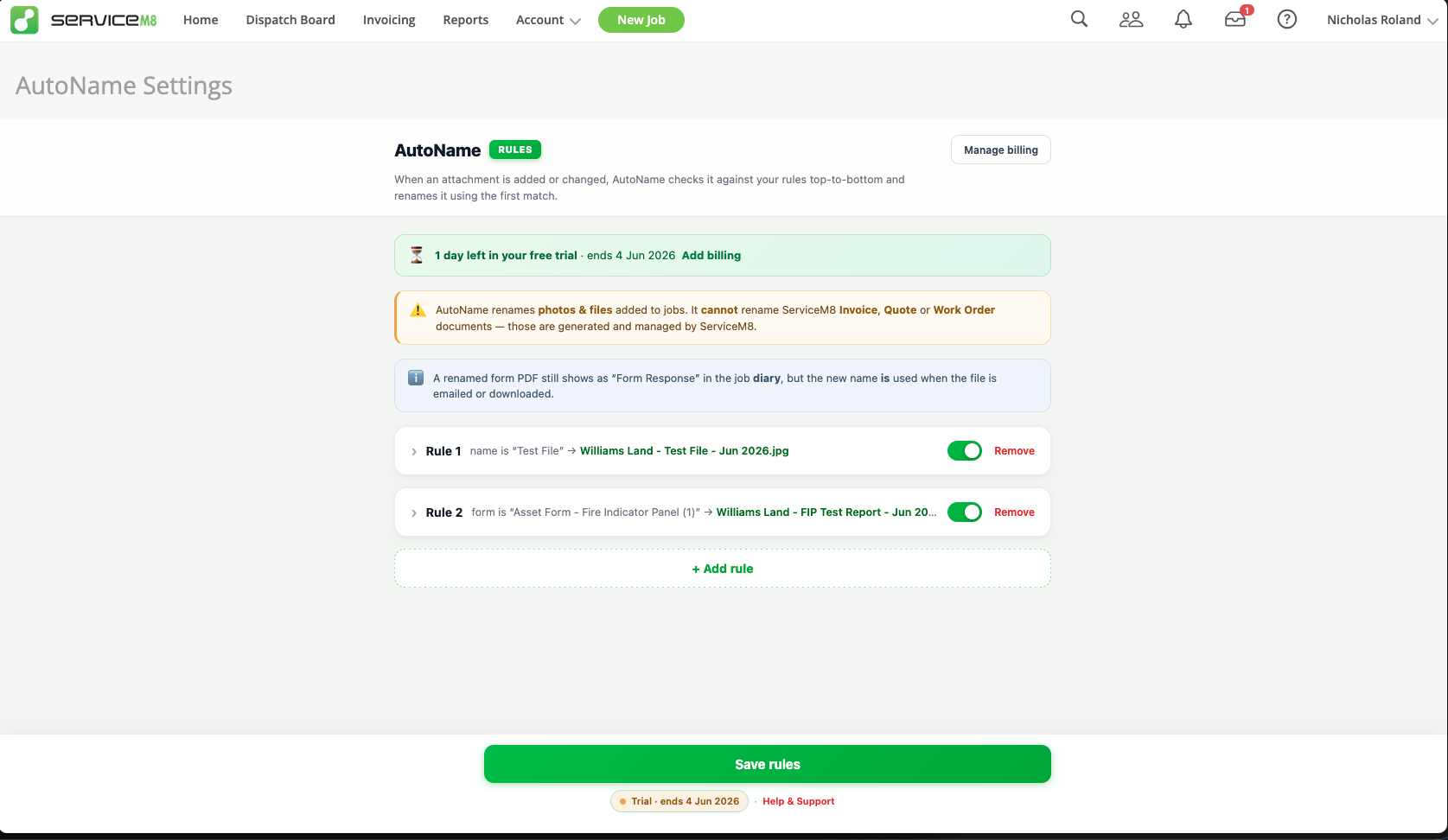
At the top you’ll see your trial countdown (or the active subscription badge) and a Manage billing link. Just below that is a reminder that AutoName never touches Invoice / Quote / Work Order documents — those are owned by ServiceM8.
Building a rule
Step 1: Add a rule
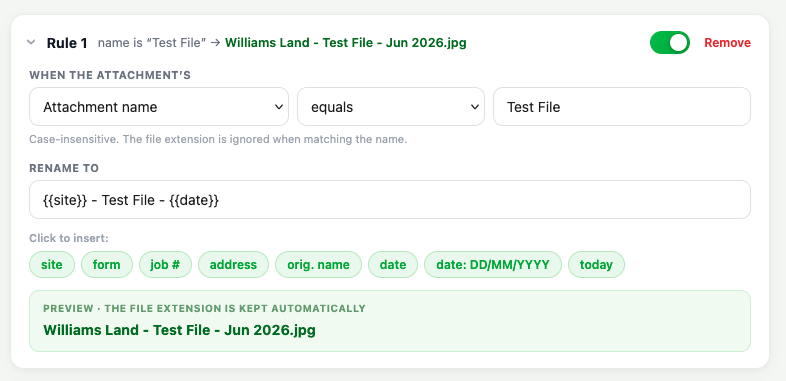
Click + Add rule. A new rule card opens with two parts: the match clause (when does this rule apply?) and the template (what should the file be called?).
Step 2: Set the match clause
Pick which field to match against:
- Attachment name — the file’s name. Case-insensitive; the file extension is ignored when matching, so Asset Register matches both Asset Register.pdf and asset register.JPG.
- File type — match by MIME type (e.g.
image/jpeg,application/pdf). - Related object — match by what the file is attached to (a job, a company, a form response).
Then choose an operator: equals, contains, starts with, ends with, regex, or any (matches everything — useful as a catch-all rule at the bottom of the list).
Step 3: Write the rename template
The template is plain text with token placeholders in curly braces. Drop them in using the chips below the input, or type them yourself.
| Token | What it becomes |
|---|---|
{{site}} | The job’s client / company name |
{{form}} | Form name (for form-submission PDFs) |
{{job}} | Job number (e.g. JB-12345) |
{{address}} | The job’s site address |
{{name}} | The original attachment name (extension stripped) |
{{date}} | The attachment’s timestamp (default format) |
{{date:DD/MM/YYYY}} | The attachment’s timestamp, custom format |
{{today}} / {{today:…}} | Today’s date, default or custom format |
Date tokens accept: YYYY, YY, MMMM, MMM, MM, M, DD, D, HH, mm, ss. The file extension is appended automatically — you don’t need to add .pdf or .jpg to your template.
Below the template you’ll see a live preview showing exactly what the next renamed file will look like.
Step 4: Save
When the rule looks right, click Save rules at the bottom of the page. From that moment on, every matching attachment is renamed automatically.
How rules are evaluated
- Rules run top to bottom — the first match wins. Drag rules to reorder them so your most specific rules come first.
- Each rule has its own toggle — flip a rule off without deleting it.
- Unmatched attachments are left alone — AutoName never renames a file that doesn’t match a rule.
- If a re-fired webhook re-runs your rules on a file that’s already correctly named, AutoName notices and does nothing — no rename loops.
Form-submission PDFs
When a worker submits a form on the ServiceM8 app, the resulting PDF is attached to a form response rather than directly to the job. AutoName follows that link and resolves {{site}} and {{job}} from the job the form belongs to.
This means inspection / testing / audit reports get clean, branded filenames automatically. For example:
Match: Form name equals Fire Indicator Panel Report
Template: {{site}} - {{form}} - {{date:MMM YYYY}}
Result: Williams Land - Fire Indicator Panel Report - Jun 2026.pdf
One thing to know: in the job’s Diary, ServiceM8 still shows form-response PDFs as “Form Response”. The renamed filename is what shows up when the file is emailed, downloaded, or viewed by the client.
What AutoName doesn’t rename
ServiceM8 generates and owns these documents itself, so AutoName leaves them alone:
- Invoices
- Quotes
- Work Orders
If you need branded filenames for those, look into ServiceM8’s document template settings.
Why didn’t my photo get renamed? (Sweep Attachments)
AutoName only runs when ServiceM8 tells us an attachment has arrived. ServiceM8 does that via a webhook — a small notification the platform fires whenever an attachment is added or changed. That works reliably for files added on the desktop / web, but ServiceM8’s mobile app doesn’t always fire the webhook, especially for photos taken in the field. When the webhook doesn’t fire, AutoName never hears about the photo, so it can’t rename it.
You haven’t done anything wrong — and AutoName isn’t broken. It’s a known ServiceM8 platform quirk, and it’s intermittent (some mobile photos rename automatically, others don’t). To catch anything that slipped through, use the built-in Sweep Attachments action.
How to run Sweep Attachments
- Open the affected job in ServiceM8.
- In the job’s toolbar click More → Addons → AutoName: Sweep Attachments.
- AutoName scans every attachment on that job and shows a preview — old name on the left, new name on the right — for the ones that would change. Nothing has been renamed yet.
- Review the preview, then click Apply. AutoName renames the matching attachments in one pass.
Is Sweep Attachments safe?
- Yes — it uses the exact same rules as the automatic renaming, so results are identical.
- It shows a preview first, so nothing is renamed until you approve it.
- Attachments that already match your rules are skipped — nothing gets renamed twice.
- Only attachments on the job you’re standing on are touched.
Do I need to do this every time?
Only for attachments ServiceM8 didn’t notify us about — mainly some ServiceM8 mobile-app photos. Desktop / web uploads and most attachments rename automatically. Sweep Attachments is there for the ones that slip through.
Tips
- Put your most specific rules first — e.g. a rule that matches “Asset Register” before a catch-all any rule.
- If you want a consistent date format across every rule, pick a default date format at the top of the rules page —
{{date}}will use it everywhere. - Use
{{name}}when you want to preserve the original filename but prepend / append context (e.g.{{site}} - {{name}}). - Don’t worry about file extensions in your template — AutoName always keeps the original.
- Test a new rule by uploading a sample photo to any job — the preview in the rule editor tells you what to expect, but a real upload is the best confirmation.
Need Help?
If you run into any issues or have a tricky renaming pattern you can’t crack, get in touch.