Help
Ditto
How to duplicate a booking across a range of days with Ditto
What is Ditto?
Ditto copies an existing booking on a job across the days you choose, keeping the same staff, same start time and same duration. Perfect for recurring site visits, multi-day jobs and week-long works — set up a whole run of bookings in seconds instead of dragging them onto the diary one by one.
Free forever
Ditto is free to install and use. No subscriptions, no future charges — and no plans to start.
Step 1 — Open Ditto from the job
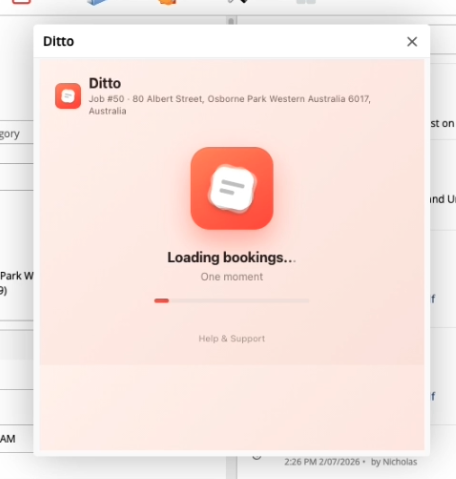
Open the job you want to copy a booking from, then launch Ditto from the job’s add-on / actions menu. It loads that job’s existing bookings so you can pick which one to repeat.
Step 2 — Pick the booking to duplicate
Select the booking you want to repeat. You choose one booking at a time.
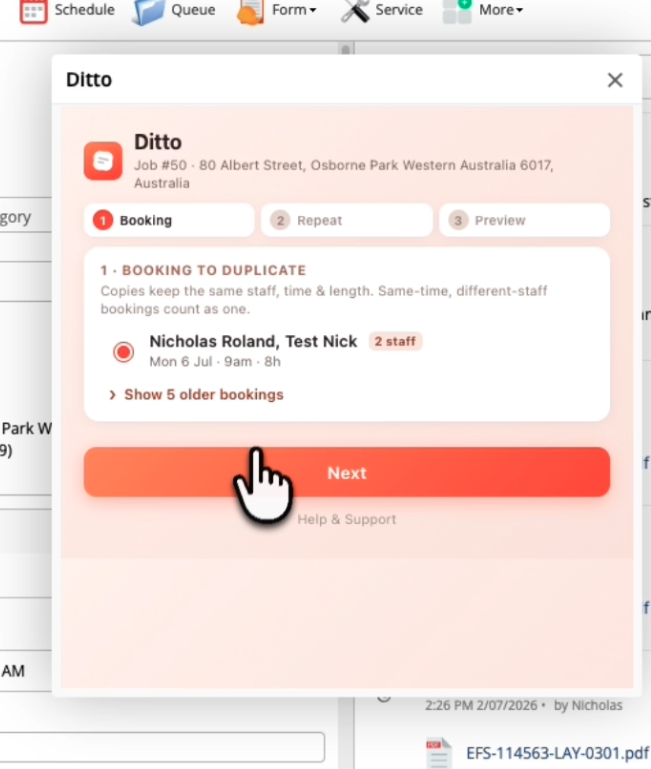
- If several staff are booked for the same time slot, they show as a single row (e.g. “Nicholas, Test · 2 staff”) and are all copied together.
- Older bookings (before yesterday) are tucked away — click Show older bookings to reveal them.
- Click Next to move on.
Step 3 — Set the range and weekdays
Set the From and To dates for the range, then tick the weekdays to include. Use the quick presets to save time:
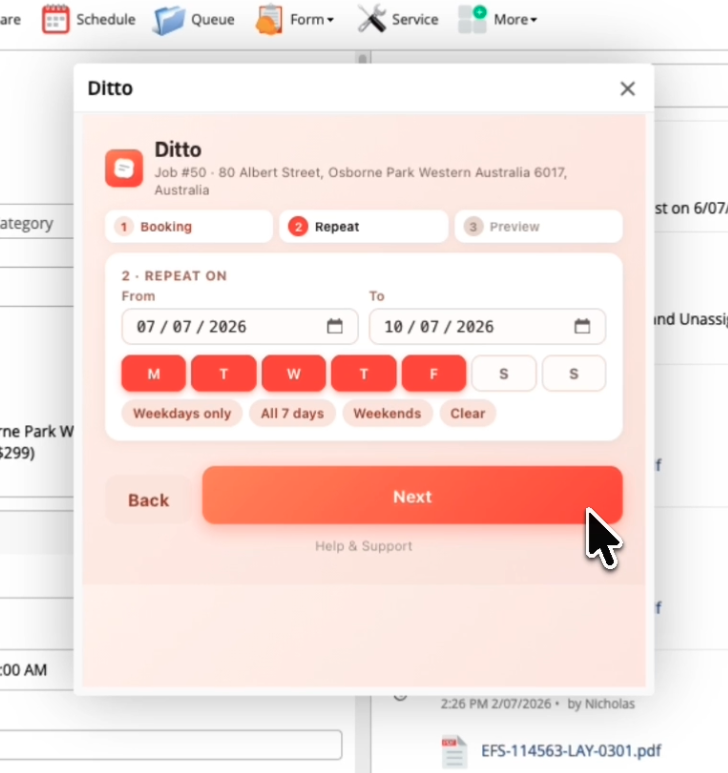
- Weekdays only (Mon–Fri)
- All 7 days
- Weekends
- Clear — reset every weekday tick
If Next is greyed out, a note explains why — usually because the To date is before the From date, or no days are ticked. Fix that and Next turns on. Then click Next.
Step 4 — Preview every copy
Review every copy that will be created, grouped by day. Each keeps the original’s staff, time and length. Untick any you don’t want, then click Create.
- Copies that already exist on the job are skipped automatically — safe to re-run.
- The booking’s own day is never duplicated (today’s booking won’t be re-added to today).
- Untick individual copies you don’t want to keep.
Step 5 — Done
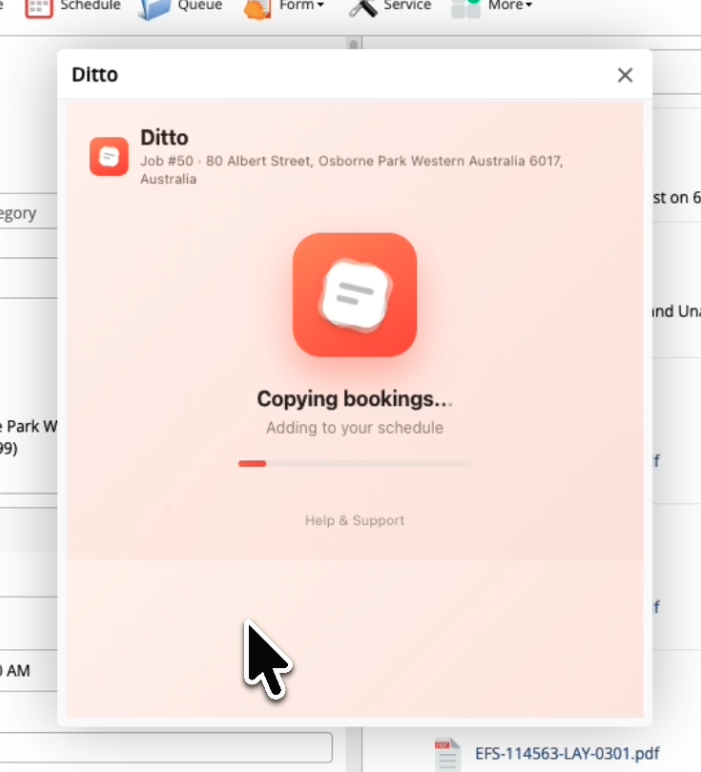
Ditto adds the bookings to the schedule and confirms how many were created (e.g. “5 bookings created”). Open the schedule / diary to see them.
Good to know
- Bookings vs. staff visits — a booking with multiple staff counts as one booking but creates one scheduled activity per staff member. Ditto shows both counts (e.g. “5 bookings · 15 staff visits”).
- Safe to re-run — because existing copies are skipped, running Ditto again won’t create duplicates.
- Limit — up to 200 bookings per run. Narrow the date range if you hit the cap.
- Dates — the picker shows your device’s local format (e.g. DD/MM in AU/UK), but it always follows the actual calendar dates you select.
Need help?
Tap Help & Support at the bottom of Ditto, or reach out and we’ll sort you out.