Help
DutyPoint
How to run a hydrant, sprinkler, pump or combined-system flow test with DutyPoint for ServiceM8
What is DutyPoint?
DutyPoint turns fire hydrant, sprinkler valve, pump and combined-system flow testing into a five-minute job in ServiceM8. Open it from the job card, pick your test type, drop a pin on the exact hydrant or booster on satellite imagery, take photos, enter your readings, and DutyPoint generates a branded PASS / FAIL PDF report — attached straight back to the ServiceM8 job.
Trial & billing
- Every new install gets a free trial — no credit card required up front.
- After the trial, DutyPoint is $19.99 AUD/month per ServiceM8 company, billed externally from ServiceM8 via Over Geek.
- Open DutyPoint from any job and use the Settings (cog icon) → Manage billing link to set up or update your payment.
- If you don’t add billing details before the trial ends, DutyPoint stops generating new reports. Reports already saved to your jobs are never affected.
- Cancel anytime from the Manage billing portal. Cancelling never affects your ServiceM8 data.
Stop billing before you uninstall
ServiceM8 doesn’t notify us when you uninstall an add-on, so uninstalling on its own doesn’t cancel your subscription. Cancel first from the Manage billing portal — or email [email protected] a few business days before your next charge and we’ll cancel it for you.
Opening DutyPoint
Step 1: Open the job
In ServiceM8, open the job the hydrant / pump / sprinkler is on.
Step 2: Launch DutyPoint from the job actions
Click the DutyPoint action on the job. It opens in a modal over the job card with the site, client, job number, address and technician already filled in.
Running a test
Step 1: Pick your test type
At the top of the form, choose the test type:
- Hydrant — static + flowed readings at 5, 10, 15, 20 L/s
- Sprinkler Valve — static + flowed readings at the valve
- Pump — readings at duty percentages (0 / 50 / 100 / 150 %)
- Combined Pump — pump + downstream flow characterisation in one test
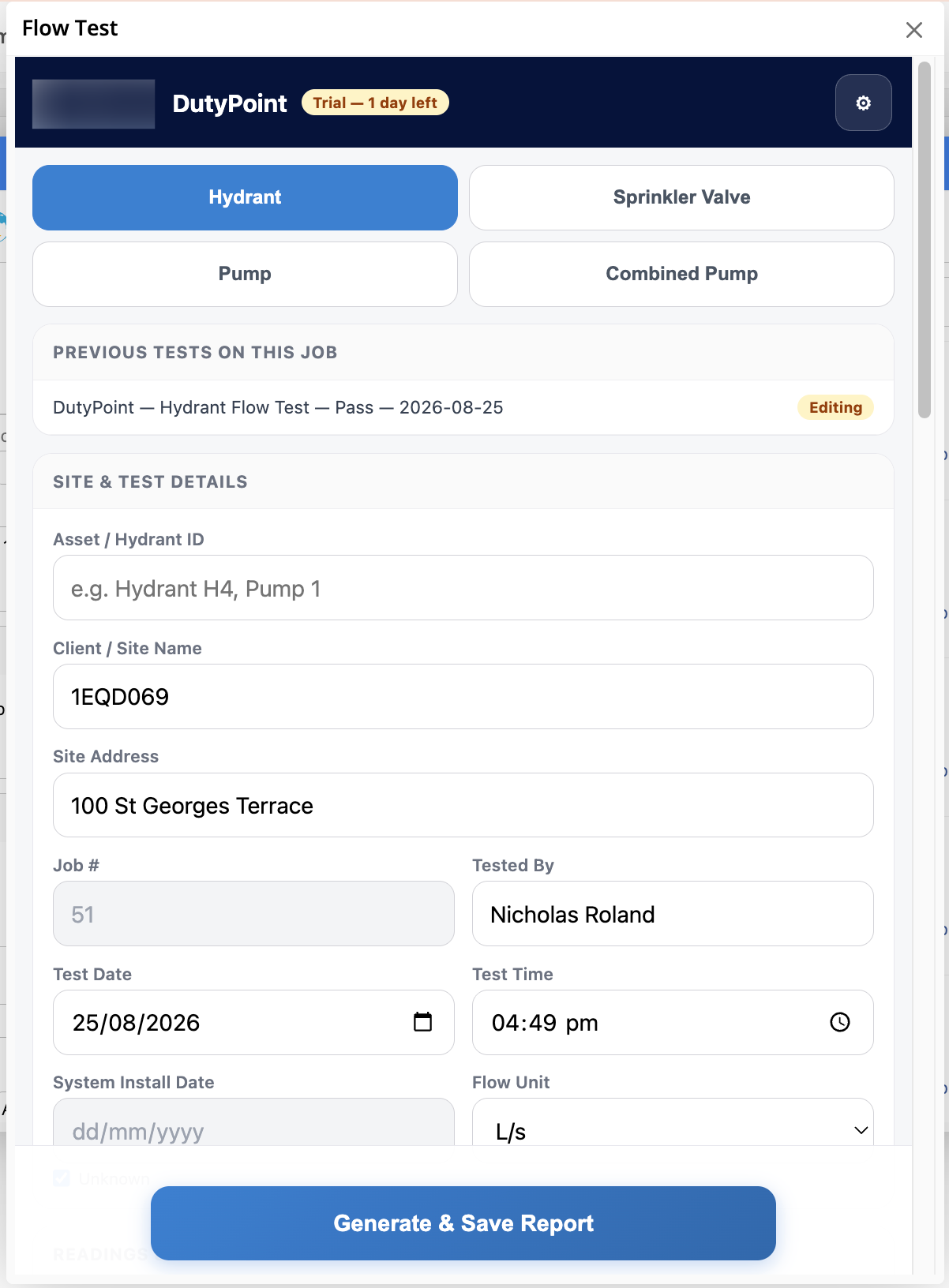
Step 2: Confirm the site & test details
Client / site name, address, job number and tester are pulled from the ServiceM8 job automatically. Enter the Asset / Hydrant ID (e.g. Hydrant H4, Pump 1), and set the test date and time (both default to now). Fill in the system install date if you know it; leave Unknown ticked otherwise.
Step 3: Enter your readings
Scroll down to the readings block and enter the pressure at each flow point in kPa:
- Static — the standing pressure at 0 L/s
- 5 / 10 / 15 / 20 L/s — the pressure at each flowed point (Hydrant / Sprinkler Valve)
- 0 / 50 / 100 / 150 % — the pressure at each duty percentage (Pump / Combined Pump)
Then set the system’s duty point — the required minimum pressure at the required flow (e.g. 200 kPa @ 20 L/s).
Step 4: Drop the pin
In the Asset Location block, search the site address or drag the pin on the satellite view to the exact hydrant / booster location. Coordinates are shown below the map and included on the report.
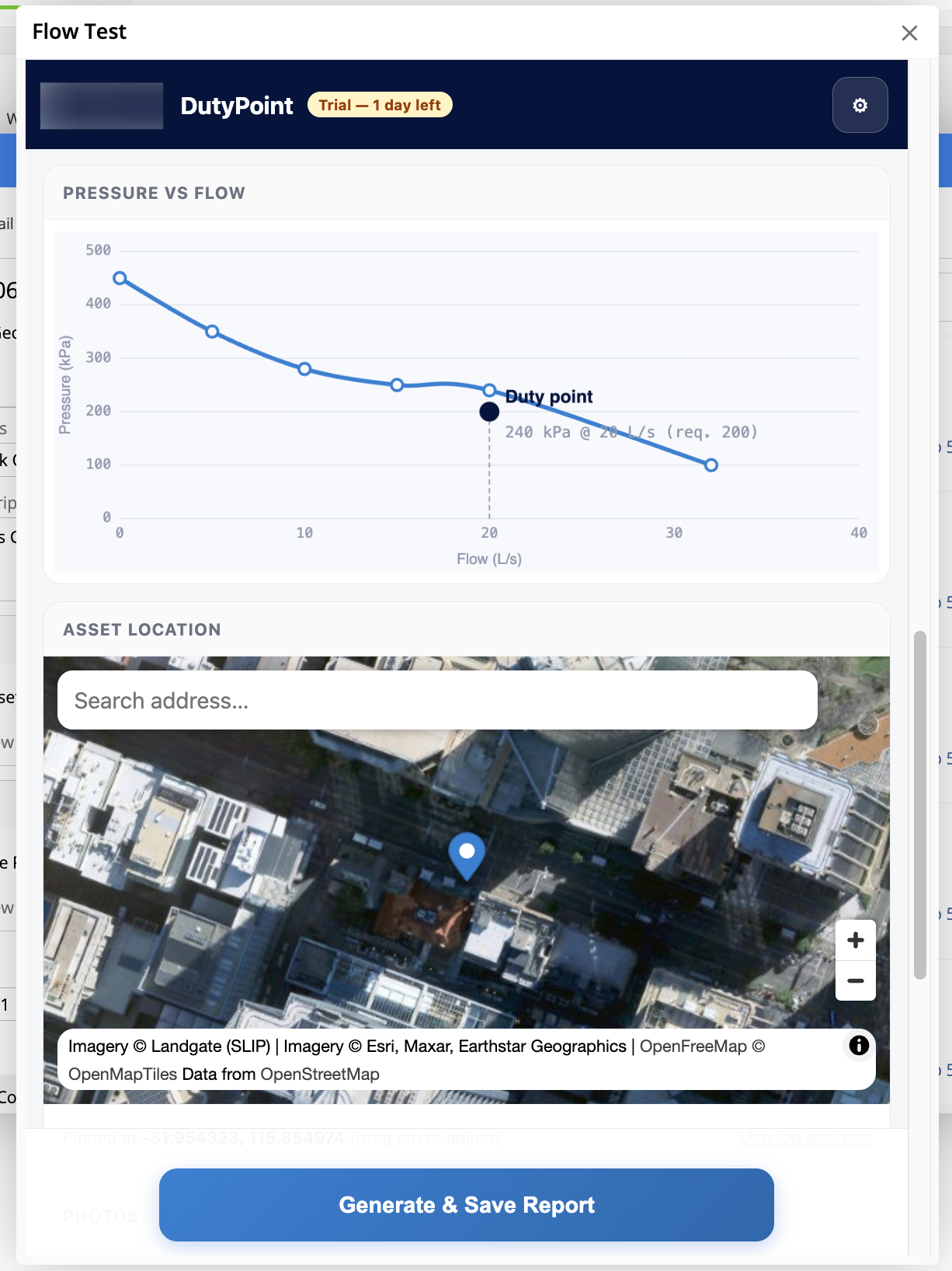
Step 5: Take your photos
In the Photos block, tap the camera / upload buttons to attach photos. Photos are saved to the ServiceM8 job diary automatically and included in the PDF report at the resolution you shot them at (they’re clickable through to full-res in the report).
Step 6: Generate & save the report
Hit Generate & Save Report at the bottom of the form. DutyPoint:
- Runs the PASS / FAIL check against your duty point.
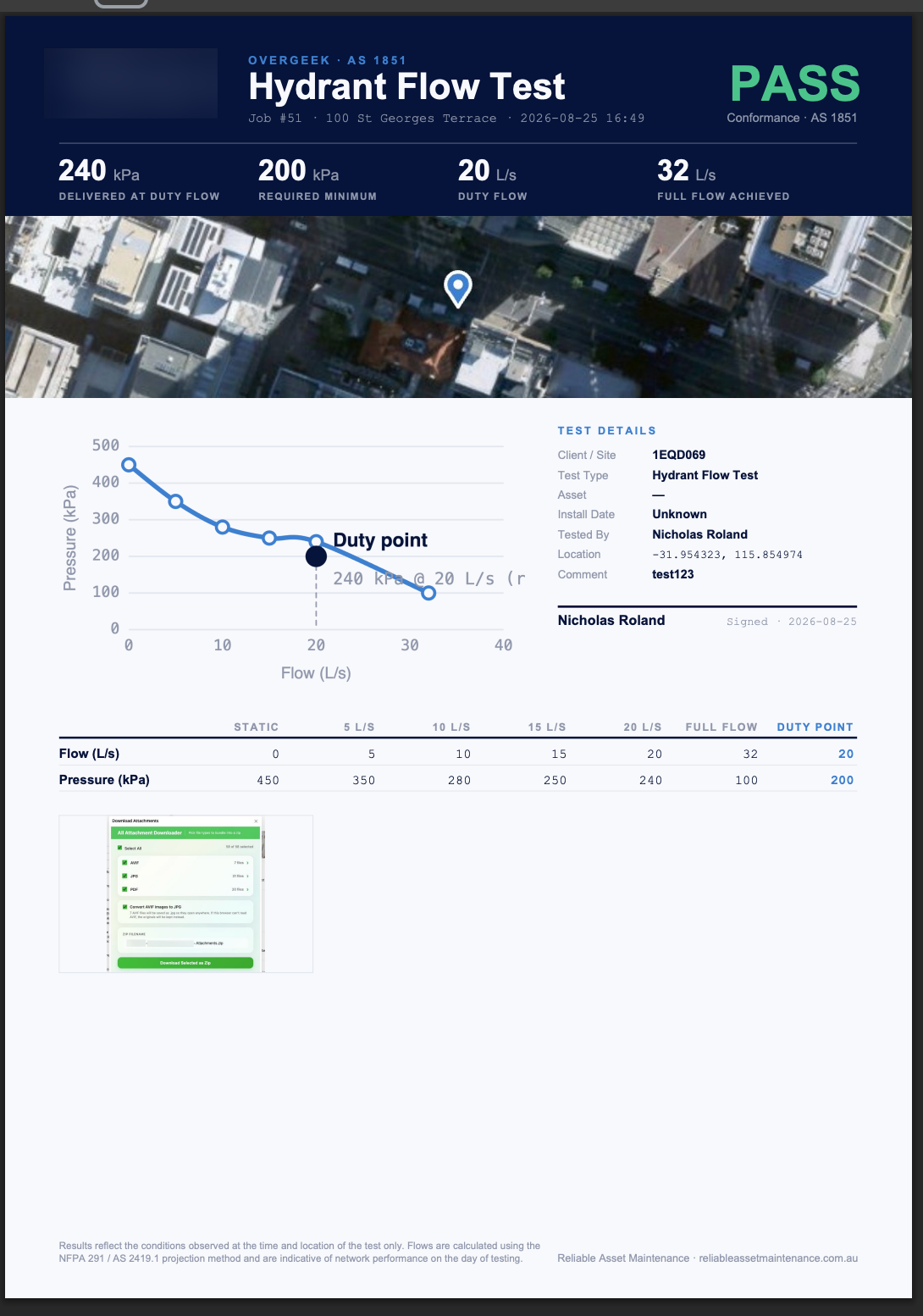
- Builds the PDF report — headline stats, satellite map, pressure–flow curve, results table, photos, sign-off.
- Attaches the PDF straight to the ServiceM8 job’s files.
Recalling and editing a test
Every test you run is saved on the job. Open DutyPoint again on the same job and previous tests appear at the top of the form under Previous tests on this job.
- Tap a previous test to open it — readings, pin location and photos are all restored.
- Edit anything you need to (a mistyped reading, a moved pin, an added photo) and hit Generate & Save Report again.
- The updated PDF is re-attached to the job.
- The status pill at the top of the row (e.g. Editing) tells you when you’re editing an existing test vs starting fresh.
Understanding PASS / FAIL
DutyPoint marks the test PASS when the delivered pressure at your duty flow meets or exceeds the required minimum you set. Anything below the required minimum is marked FAIL.
The duty point is called out on the pressure–flow curve with the delivered kPa @ L/s so it’s obvious how much margin (or how big a shortfall) you’re looking at. Headline stats at the top of the report show:
- Delivered at duty flow — what the network actually gave you
- Required minimum — what the system needs at the duty point
- Duty flow — the L/s figure the duty point is checked at
- Full flow achieved — the highest flow measured on the run
Custom branded reports ($199 one-off)
Reports use our clean default design out of the box. If you want them in your company’s colours and logo, we’ll set up a custom template — applied across both the PDF report and the in-app form — for a one-off $199 AUD. Just email [email protected] with your logo (PNG or JPEG, HTTPS URL or attachment) and your brand colours, and we’ll do the rest. Once your custom template is live, every report you generate uses it automatically — no ongoing charge.
Tips
- Enter the Asset / Hydrant ID the same way each time (e.g. H4, not Hydrant 4 one day and H-04 the next) — makes it easier to search past tests later.
- Take at least one wide-angle photo of the hydrant / booster in its surroundings — the report’s satellite map covers “where” but the photo covers “which one”.
- Set the duty point before you enter readings — the PASS / FAIL indicator updates live as you type.
- If a pump test needs a re-run with corrected readings, open the previous test rather than starting a new one — keeps the history clean.
- Reports live in the ServiceM8 job’s files section, so they’re instantly emailable to the client from the job.
Need Help?
If you run into anything broken, have a specific flow-test scenario that doesn’t fit the standard forms, or want your reports in your own branding, get in touch.