Help
Job Radar
How to use Job Radar for ServiceM8
What is Job Radar?
Job Radar adds a proximity search to your job cards. With one click, see every active work order and quote at the current site and nearby locations, with a configurable radius up to 50km. It helps your team coordinate visits, avoid double-ups, and spot opportunities to batch nearby jobs together. Works on desktop and the ServiceM8 mobile app.
Getting Started
Step 1: Install from the ServiceM8 Add-on Store
Job Radar is free and available on the ServiceM8 Add-on Store. Open the directory and search for Job Radar — look for the icon shown here — then click install.

Step 2: Open it from a job
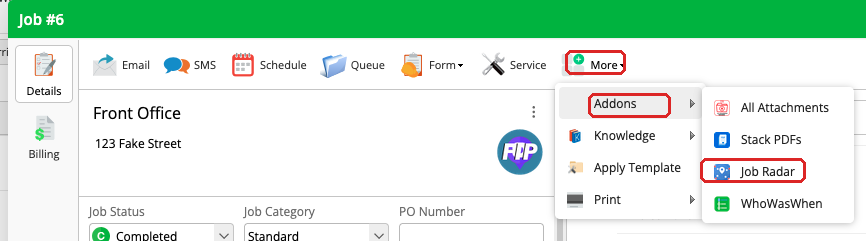
Navigate to any job in ServiceM8. Click More in the toolbar, then hover over Addons to reveal the submenu. Click Job Radar to open the addon.
Using Job Radar
Jobs at this site
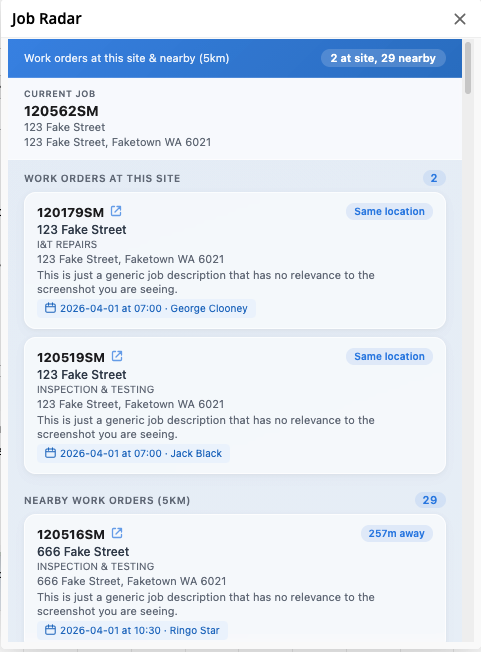
At the top of the view, you'll see all active jobs (work orders and quotes) for the same client and address. This tells you what else is happening on-site so you can coordinate. Each entry is tagged with its status, so you can tell at a glance whether it's a quote or a confirmed work order.
Nearby jobs
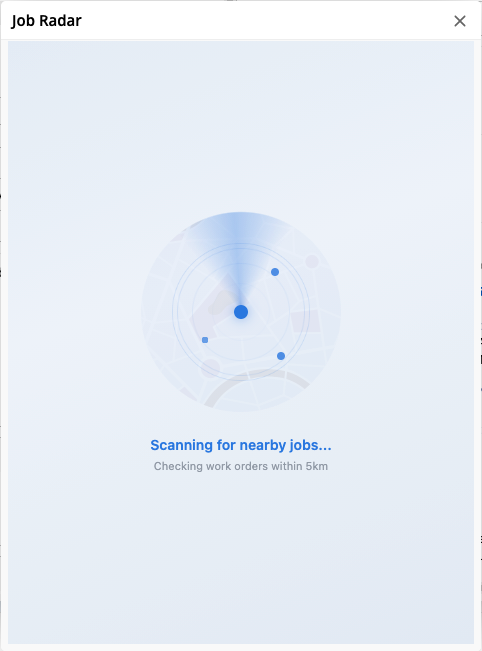
Below the on-site jobs, you'll see other active jobs in the area, sorted by distance. Each entry shows the client, address, status (quote or work order), category, and description. Pick a radius of 5km, 10km, 25km, or 50km in the filters, depending on how wide you want to cast the net.
Live activity and bookings
See who's currently on-site with a live pulsing indicator and staff name. Upcoming bookings show the date, time, and assigned staff.
Filters
Job Radar now includes filters so you can narrow the nearby jobs list down to exactly what you need. Open the Filters panel at the top of the results to adjust any of these:
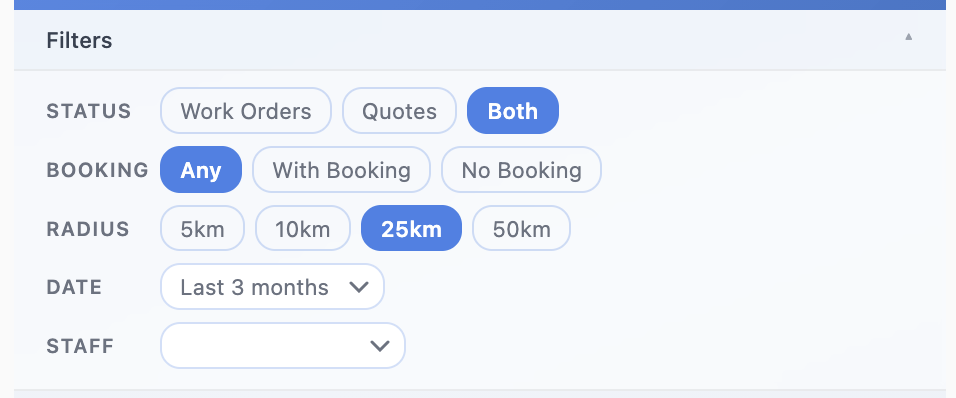
- Status: Show Work Orders, Quotes, or Both.
- Booking: Show Any job, only jobs With Booking already scheduled, or only jobs with No Booking yet.
- Radius: Search within 5km, 10km, 25km, or 50km of the current site.
- Date: Limit results by a date range, like Last 3 months, to keep the list current.
- Staff: Filter by which staff member is assigned to the job.
Filters apply instantly. Combine them however you like to spot batching opportunities or find a specific job in a busy area.
Tips
- Click any job number to copy it to your clipboard
- Click through to open any job directly in a new tab
- Jobs with no address or a different address are flagged
- No setup required, just enable and go
Need Help?
If you run into any issues or have questions, get in touch and we'll sort you out.