Help
JobSplit
How to split part of a ServiceM8 job into a brand-new job
What is JobSplit?
JobSplit moves part of a ServiceM8 job onto a new job. You drag across the line items (all of a line, or part of its quantity) and any description text you want to move. The new job starts with the original job’s client or site, address, category, status and contacts. When you confirm, JobSplit creates the job, moves the items, and adds a diary entry to both jobs linking them.
Typical uses: splitting a quote into stages, billing part of the work to a different client or site, or giving a variation its own job.
Pricing & billing
JobSplit includes a 14-day free trial, then costs $8.99 AUD/month per ServiceM8 company, billed externally from ServiceM8 via Over Geek. It doesn’t change your ServiceM8 plan. Admins can see the plan status and manage billing in JobSplit’s Settings → Billing.
Cancel your subscription before you disconnect
Cancel your subscription from inside JobSplit (Settings → Billing → Manage billing) before you disconnect or uninstall it. ServiceM8 doesn’t tell us when an add-on is disconnected, so if you skip this step you’ll keep being billed. Having trouble? Let us know and we’ll sort it out.
Opening JobSplit
Open any job in ServiceM8 on desktop and click JobSplit on the job card. JobSplit opens in a window over the job, with the current job on the left and the new job on the right.
The first person to open JobSplit becomes its admin. Admins can change the settings and add other admins (see Settings below).
Moving line items
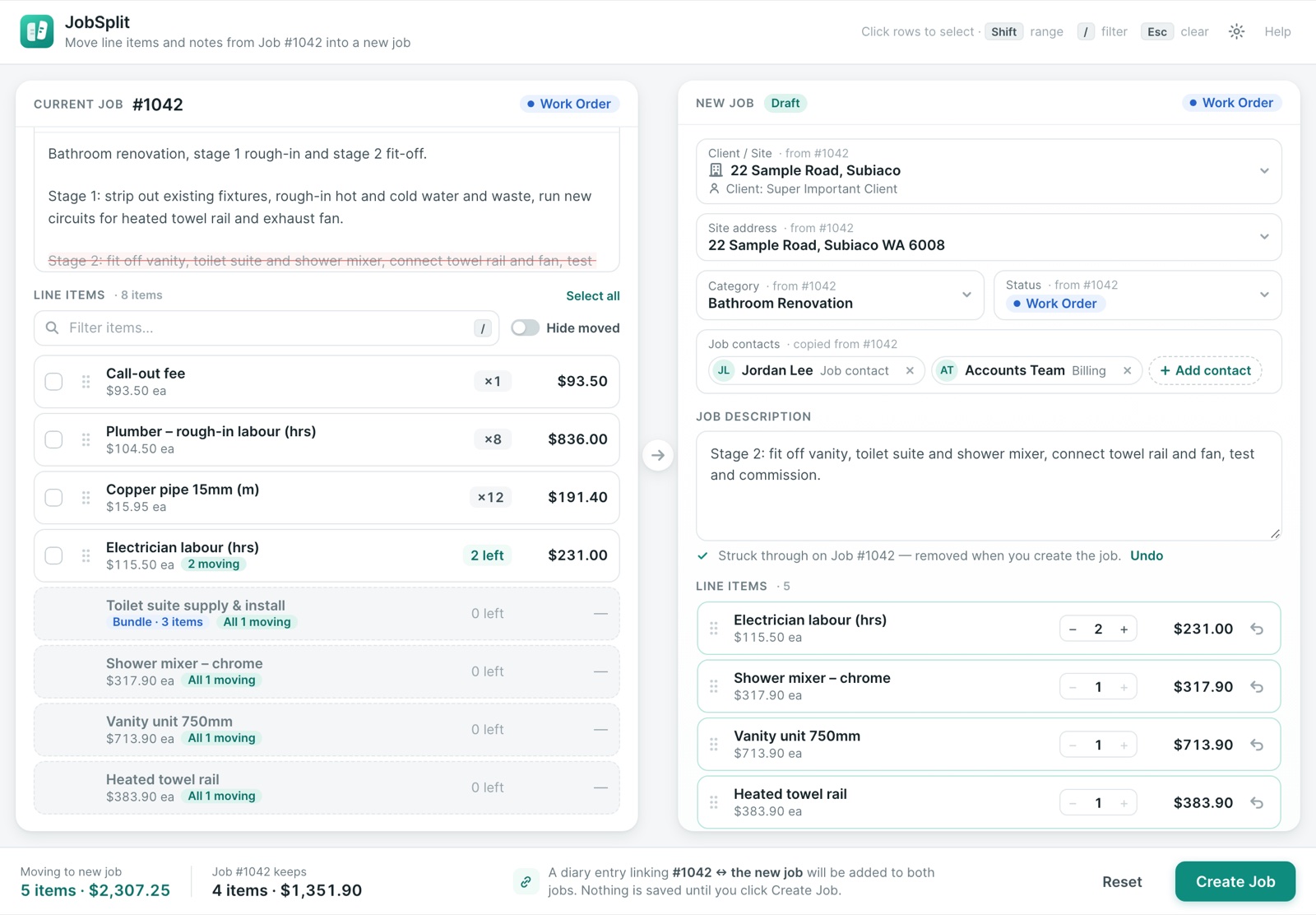
- Drag a line from the left onto the new job on the right.
- Part of a quantity: for a line with a quantity over 1, JobSplit asks how many to move. The rest stays on the original, which shows how many are left and how many are moving. Adjust the number on the new job with the − and + buttons.
- Several lines at once: click rows to select them (hold Shift to select a range), then drag any selected row. Press Esc to clear the selection.
- Find a line: press / to filter the list.
- Bundles move whole, with all their items, so there’s no quantity prompt.
- Changed your mind? Use the undo arrow on a line on the new job to send it back.
Moving description text
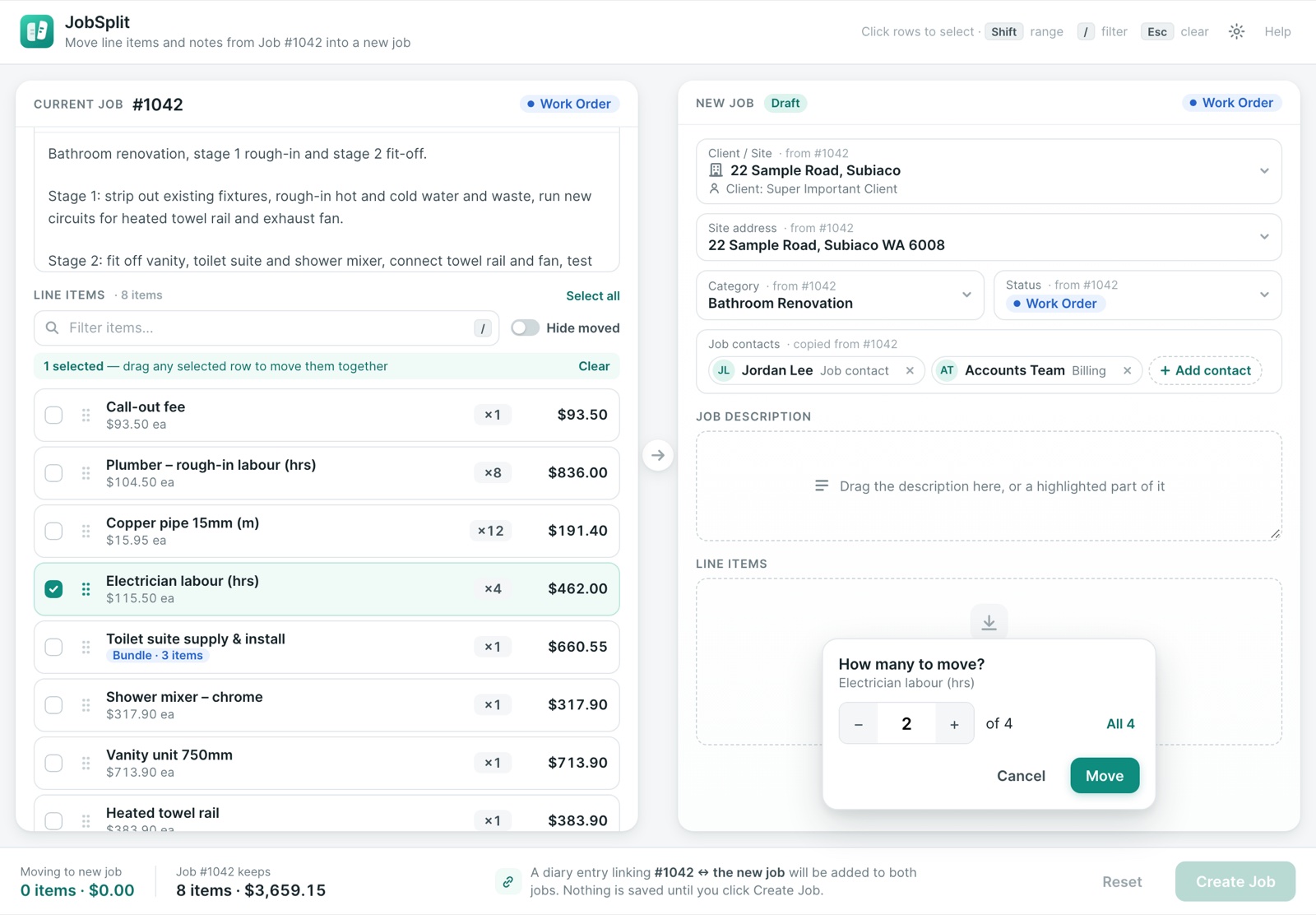
Drag the whole description across with Drag all, or highlight part of it and drag that. Depending on your settings, JobSplit either asks whether to remove the moved text from the original, always keeps it, or always removes it. Text that will be removed is struck through on the original, with an Undo link, until you create the job. If the original job’s description is changed by someone else while you’re working, JobSplit leaves it alone and tells you.
Client, site and job details
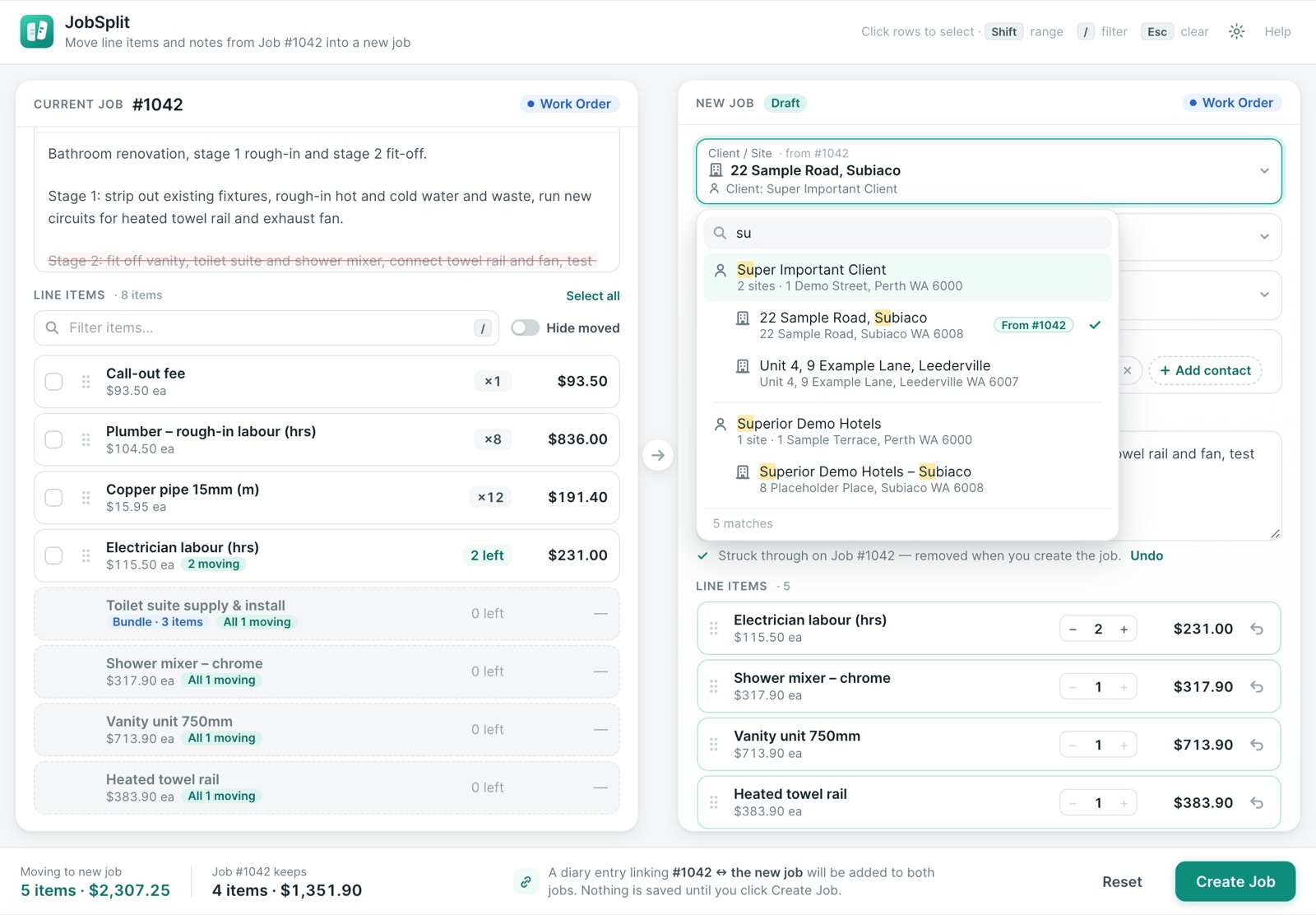
The new job starts with the original job’s values, each marked from #1042:
- Client / Site: search your clients and sites. Sites show a building icon and their parent client; clients show a person icon. You can switch to the parent client or any of its sites.
- Site address, category and status.
- Job contacts: copied across (if turned on in Settings). Remove any you don’t want, or add another.
Creating the job
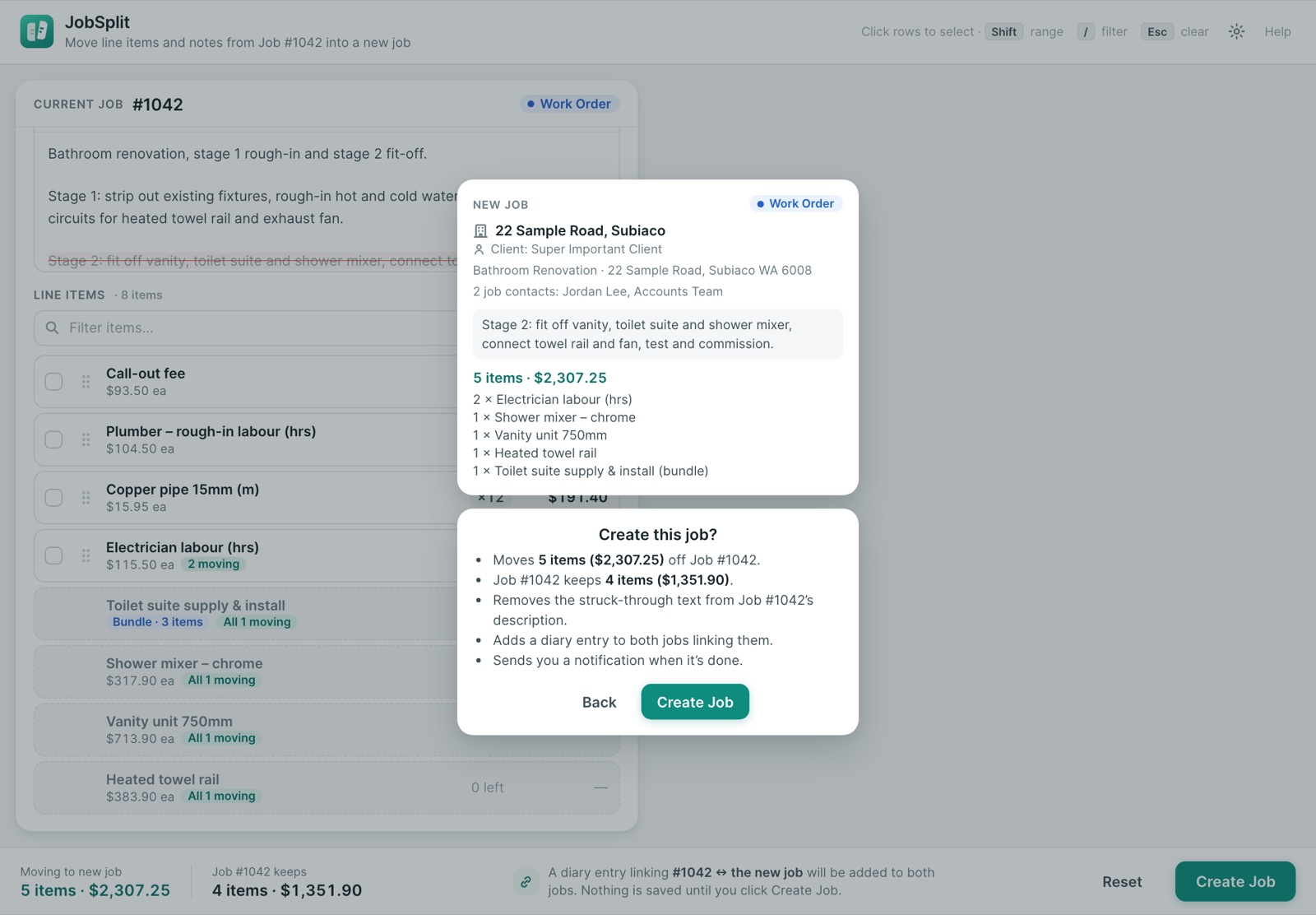
Click Create Job. JobSplit shows a preview of the new job and a summary of what will happen to the original: what moves, what it keeps, and whether any description text is removed. Nothing is written to ServiceM8 until you confirm. Click Back to keep editing.
While the split runs, JobSplit shows each step. Keep the window open until it finishes. ServiceM8 limits how fast add-ons can make changes, so a large split can take a little while. If ServiceM8 is busy, JobSplit waits and carries on by itself.
JobSplit copies each line to the new job before reducing it on the original. If a split is interrupted, an item can end up on both jobs but never on neither, and running it again won’t move a line twice. Lines someone else changed while you were working are skipped and listed.
After the split
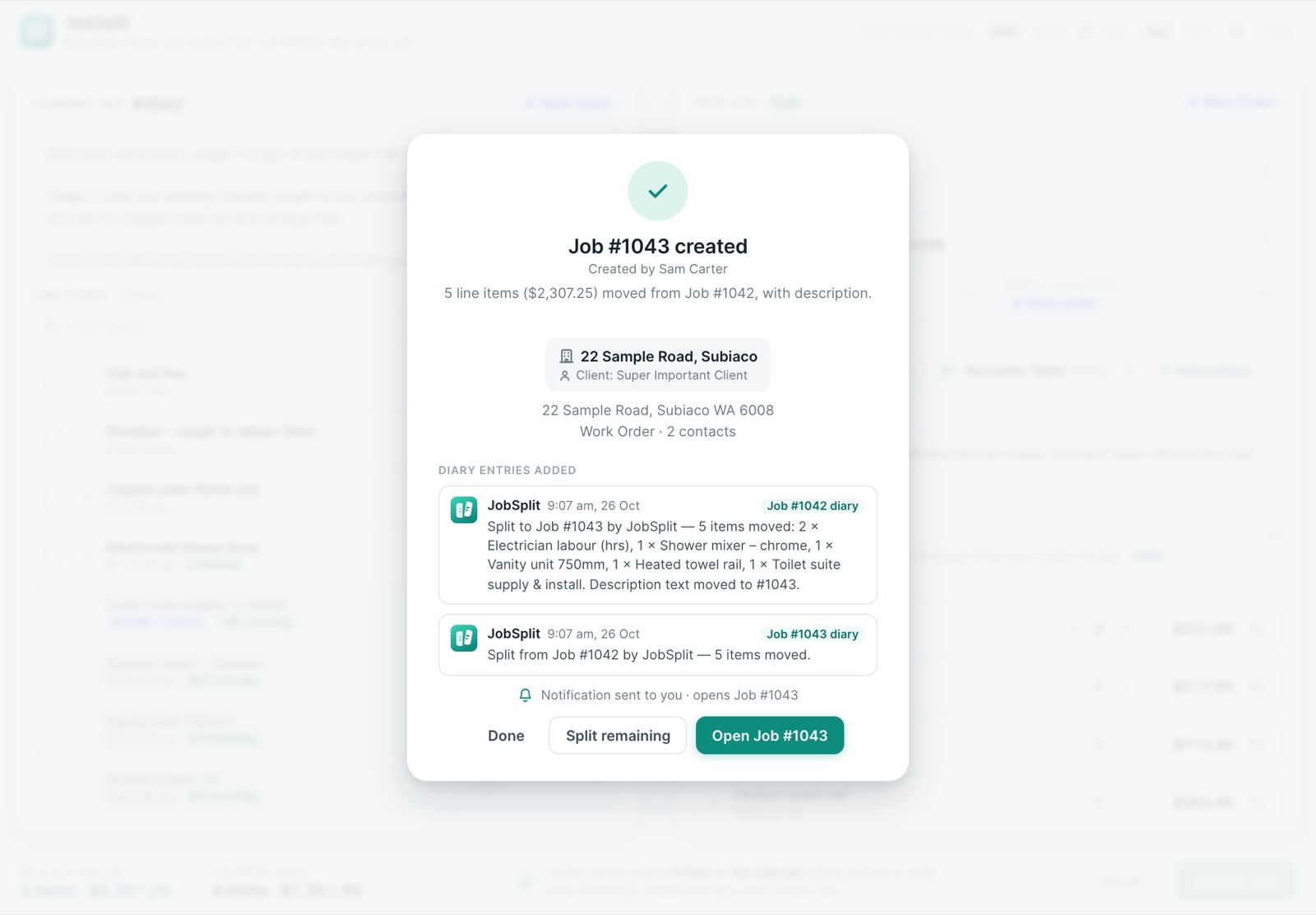
- Both jobs get a diary entry linking them by job number. The original job’s entry lists everything that moved.
- You can get a ServiceM8 notification that opens the new job.
- Open Job goes straight to the new job.
- Split remaining reopens JobSplit on the original job with whatever is left, ready for another split.
Settings
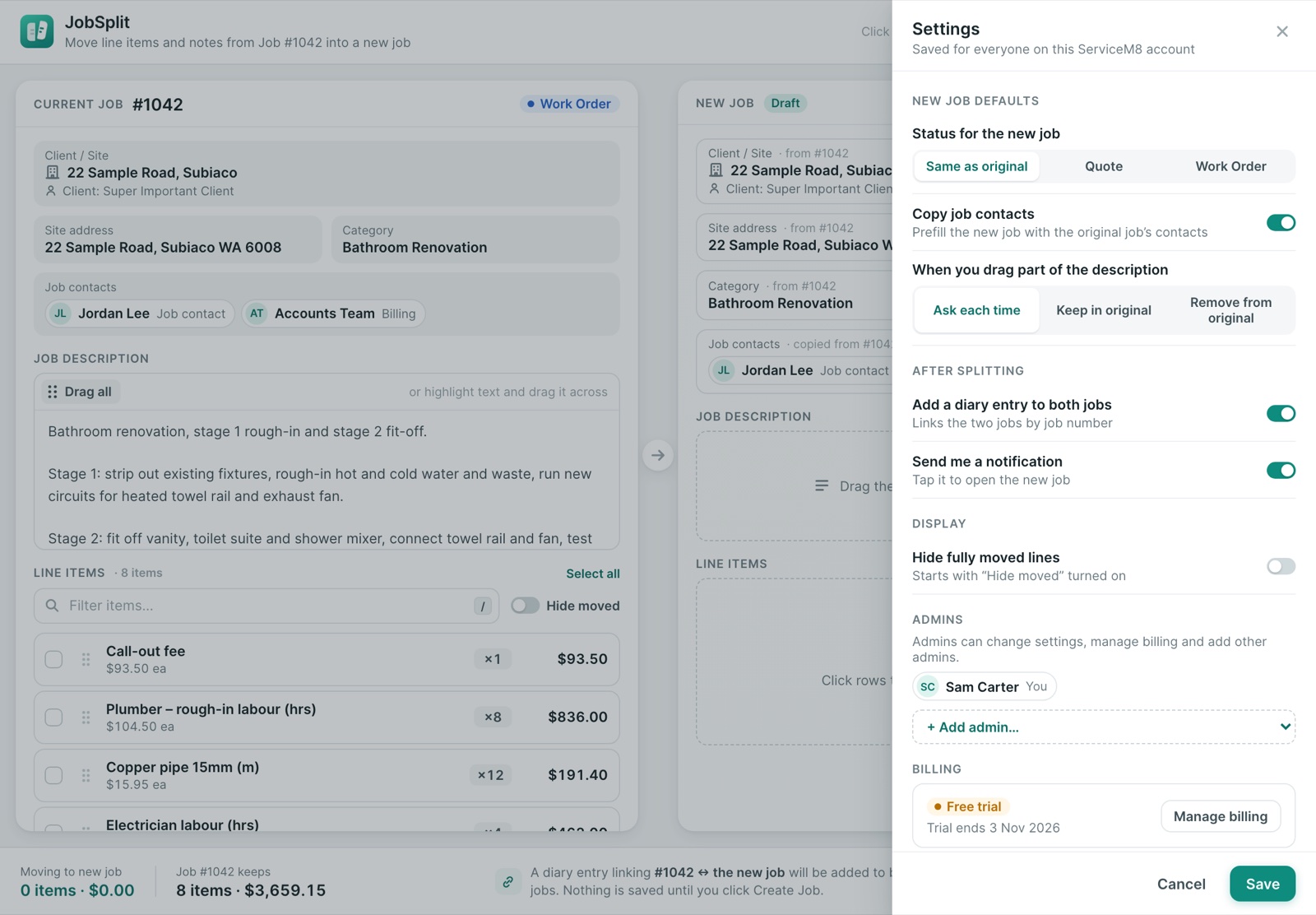
Click the gear icon at the top right. Settings apply to everyone on your ServiceM8 account. Only admins can change them; everyone else sees them read-only.
- Status for the new job: same as the original, Quote or Work Order.
- Copy job contacts: prefill the new job with the original job’s contacts.
- When you drag part of the description: ask each time, keep it in the original, or remove it from the original.
- Add a diary entry to both jobs on or off.
- Send me a notification on or off.
- Hide fully moved lines: start with “Hide moved” turned on.
- Admins: add or remove admins. There’s always at least one.
- Billing (admins only): plan status, trial or renewal date and a link to manage billing.
Where your data lives
- Jobs stay in ServiceM8. JobSplit reads and writes them while you use it and keeps no copy.
- Settings and the admin list are stored on Over Geek’s server.
See our Privacy Policy for the specifics.
Need Help?
If something isn’t working, or a split didn’t turn out as expected, get in touch with the two job numbers.