Help
PerMeter
How to measure, price and bill per-metre / per-square-metre work in ServiceM8 with PerMeter
What is PerMeter?
PerMeter turns the ServiceM8 job card into a measure-and-quote tool for anyone who quotes by the metre or square metre. Open it from the job, trace the site on high-resolution aerial imagery, link each zone to a ServiceM8 material or bundle, and PerMeter pushes priced line items — along with a summary note and a site markup depicting the area serviced — straight back to the job.
Built for turf laying, fencing, concreting, line marking, mowing, sealing, spraying, paving, landscaping — any trade that measures work on site to quote it.
Trial & billing
- Every new install gets a 7-day free trial — no credit card required up front.
- After the trial, PerMeter is $9.99 AUD/month per ServiceM8 company, billed externally from ServiceM8 via Over Geek.
- Open PerMeter from any job and use the Settings → Manage billing link to set up or update your payment.
- If you don’t add billing details before the trial ends, PerMeter stops letting you push new line items to jobs. Measurements already saved on your jobs are never affected.
- Cancel anytime from the Manage billing portal. Cancelling never affects your ServiceM8 data.
Cancel your subscription before you disconnect
Cancel your subscription from inside PerMeter using Manage billing in its settings before you disconnect or uninstall it. ServiceM8 doesn’t tell us when an add-on is disconnected, so if you skip this step you’ll keep being billed. Having trouble? Let us know and we’ll sort it out.
Opening PerMeter
Step 1: Open the job
In ServiceM8, open the job you’re quoting.
Step 2: Launch PerMeter from the job actions
Click the PerMeter action on the job. It opens in a modal over the job card and centres the aerial map on the job’s site address.
Drawing a zone
Step 1: Position the map
The map centres on the job’s site address. Pinch / scroll to zoom in until the area you’re measuring fills the view. High-resolution aerial imagery gives you enough detail to trace fence lines, driveways and building edges accurately.
Step 2: Add nodes
Tap (or click) around the perimeter of the zone to drop nodes. A crosshair on your phone helps you place nodes exactly where you want them — on the fence corner, on the driveway edge, on the kerb.
- Live measurements — the m² (area) and m (perimeter / distance) totals update as each node is placed.
- Corner snapping — when a node lands close to an existing one, it snaps so your shape closes cleanly.
- Drag to adjust — grab any existing node and drag it to reposition. Measurements re-flow live.
Step 3: Close the shape
Tap the first node again (or use the Close shape control) and the zone is finalised. The zone appears with its area / length label so you can see at a glance what you’ve measured.
Linking a zone to a material
Step 1: Pick the material or bundle
With the zone selected, choose a ServiceM8 material or bundle from the picker. Your starred favourites appear at the top — star the materials you quote all the time so you don’t have to scroll.
Step 2: Confirm the quantity
PerMeter auto-fills the quantity from the zone’s measurement — area in m² for area materials, length in m for linear ones. Use the one-tap round-up if you order the material in whole units (a pallet of turf, a roll of matting, a box of paint).
Step 3: See the live total
PerMeter multiplies the quantity by the material’s ServiceM8 sell price and updates the running dollar total live. Add more zones, link more materials — the total keeps climbing so you can quote to a target on the spot.
Duplicating & repeating zones
If the next quote is basically the same shape (the third townhouse block on the same street, the second identical fence run), duplicate the zone with one tap. The duplicate keeps the linked material and quantity — move it into position on the map and hit Add to Job.
Pushing to the ServiceM8 job
Hit Add to Job and PerMeter:
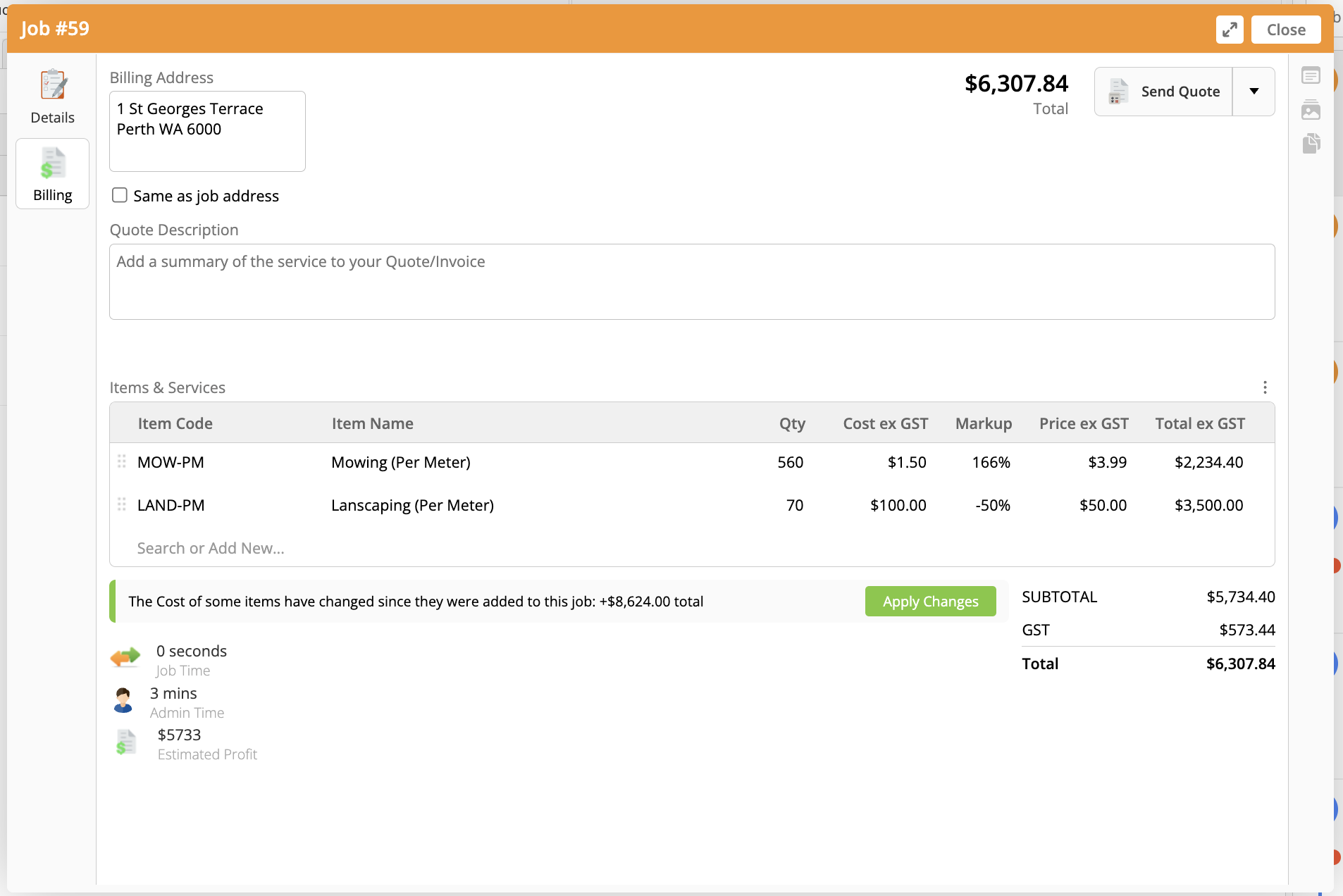
- Writes each linked zone as a billable line item straight into the ServiceM8 job’s materials.
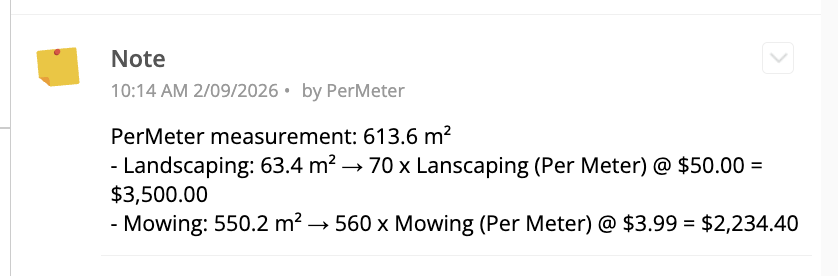
- Adds a clean summary note to the job describing what was measured.
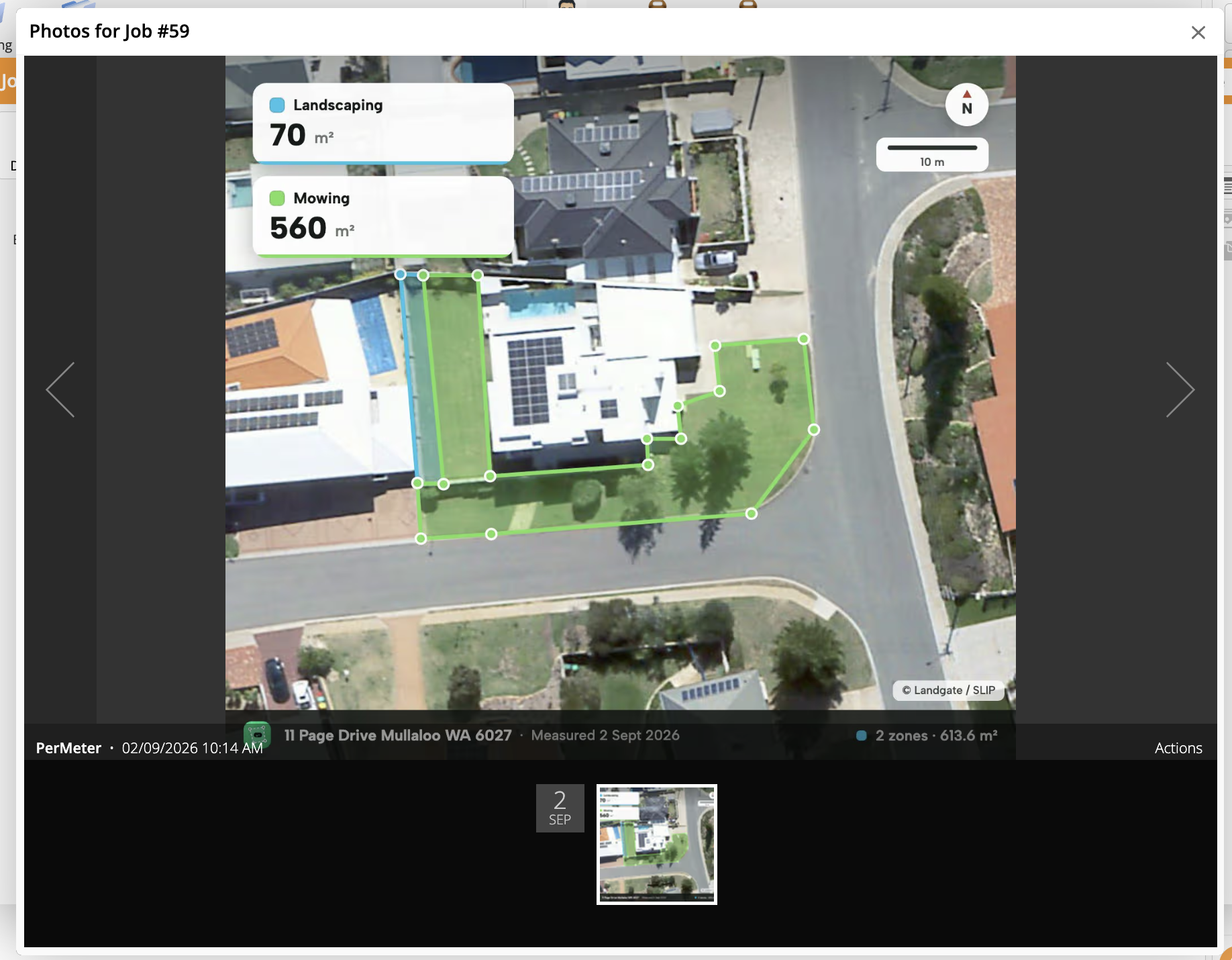
- Attaches a site markup depicting the area serviced to the job diary — aerial imagery with zone outlines, callouts (area / length / material / dollar value), scale bar, north arrow, and your branding.
You now have a job with quotable line items, an explanation of how you got there, and a client-ready markup you can email straight from ServiceM8.
Line items on the job
Summary note in the diary
Site markup on the job’s photos
Coming back later
Your measurements are saved on the ServiceM8 job. Open PerMeter on that job again and every zone is right where you left it — ready to edit, add to, or push another set of line items from.
- Measure the front yard today, the back yard next week — both save on the same job.
- Change your mind on which material a zone should use? Re-link and push updated line items.
- Want a fresh set of line items after tweaks? Re-run Add to Job.
Tips
- Star your regulars — the three or four materials you use every day. Cuts the material picker down to a single tap.
- For fencing, use distance zones (open shapes) so you get metres of run, not m².
- The corner-snap is your friend — work slowly on tricky corners and let it lock onto adjacent nodes.
- Round-up matters — a turf pallet covers a fixed area, so quoting exact m² leaves you short. Round up per material so you order what you actually need.
- The site markup doubles as your record of what you quoted (or serviced) — if the client questions the price, you have the exact measured area on aerial imagery to show them.
- Works on desktop and in the ServiceM8 mobile app — do the tracing in the office on the big screen, or on the truck in front of the client.
Need Help?
If you run into anything broken, have a specific measurement scenario you’re not sure how to handle, or want a hand setting up your material starred list, get in touch.