Help
PinDrop
How to use PinDrop for ServiceM8
What is PinDrop?
PinDrop is a ServiceM8 addon that puts your asset register on an interactive map. Every active asset with coordinates appears as a colour-coded pin. Click any pin for full asset details, photos, pass/fail status from recent tests, and inline editing. All without leaving ServiceM8.
Currently in Public Beta
PinDrop is free to use during the beta. On launch it becomes a paid subscription at $14.99 AUD/month, billed through ServiceM8. Read the beta terms and install.
Getting Started
PinDrop runs as a three-step wizard. Open it, pick your sites, pick your asset types, and you're on the map.
Step 1: Open PinDrop
Click the PinDrop icon in your ServiceM8 sidebar.
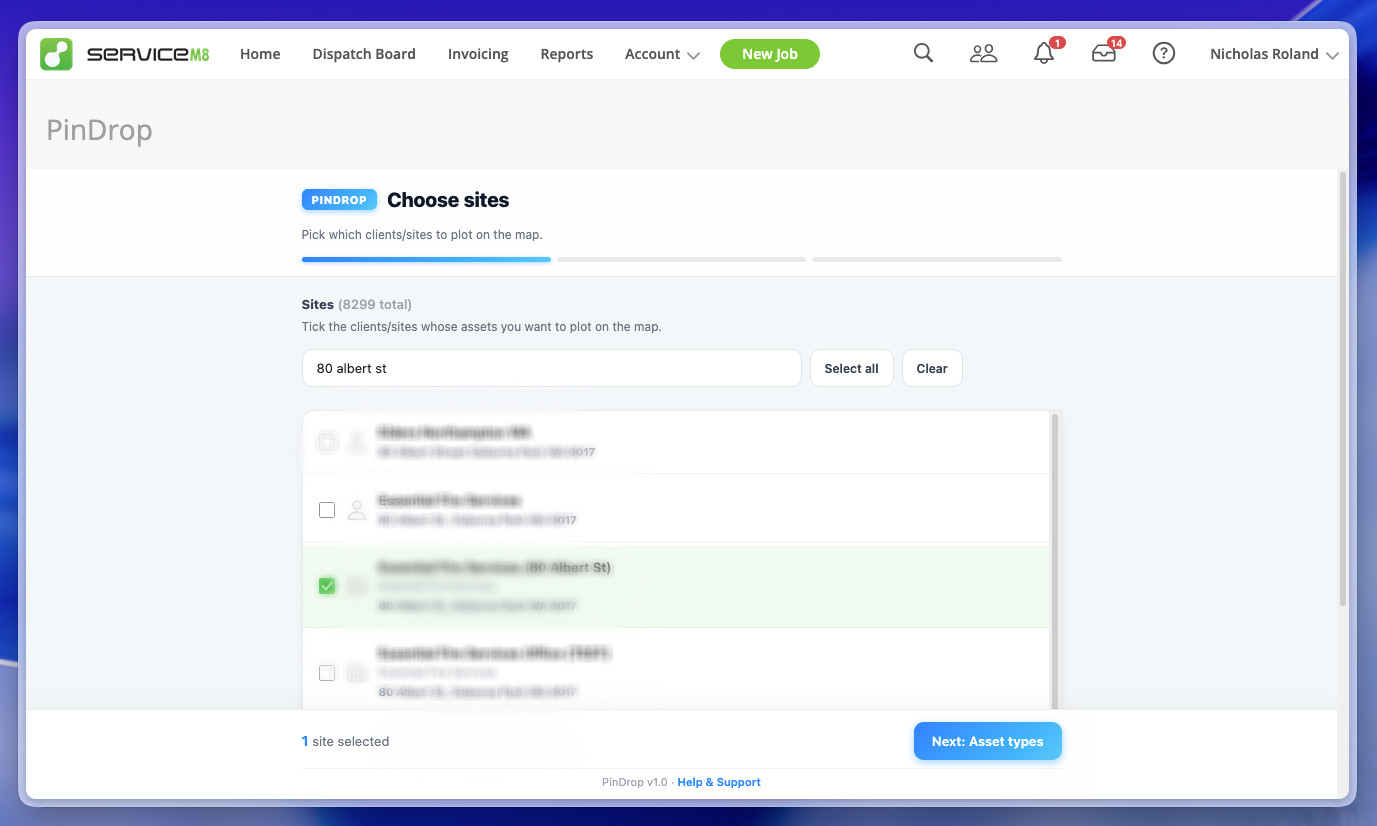
Step 2: Choose sites
Tick the customers and sites whose assets you want to see. Use the search box for large client lists.
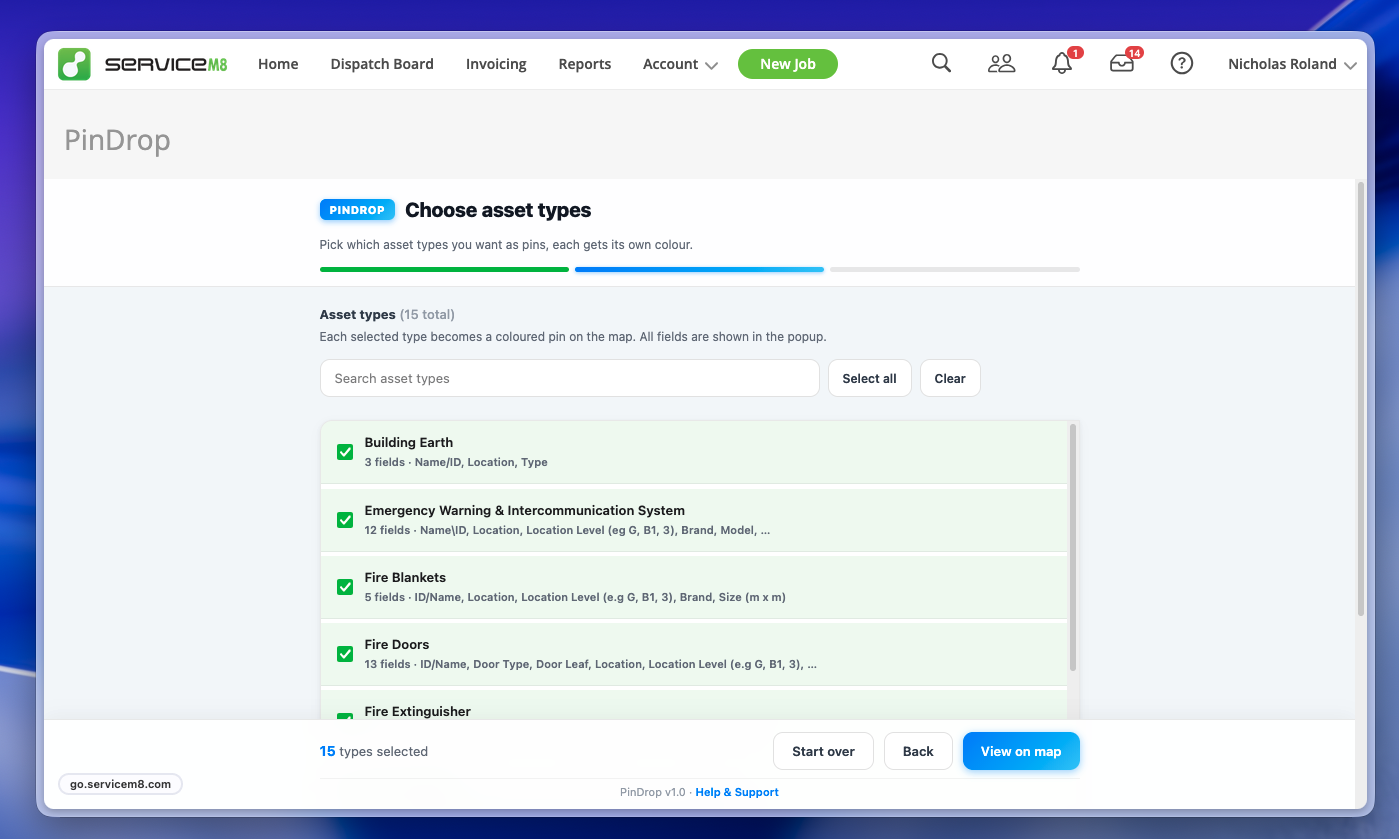
Step 3: Choose asset types
All types are ticked by default. Untick any you want to exclude. Each type becomes a different colour on the map.
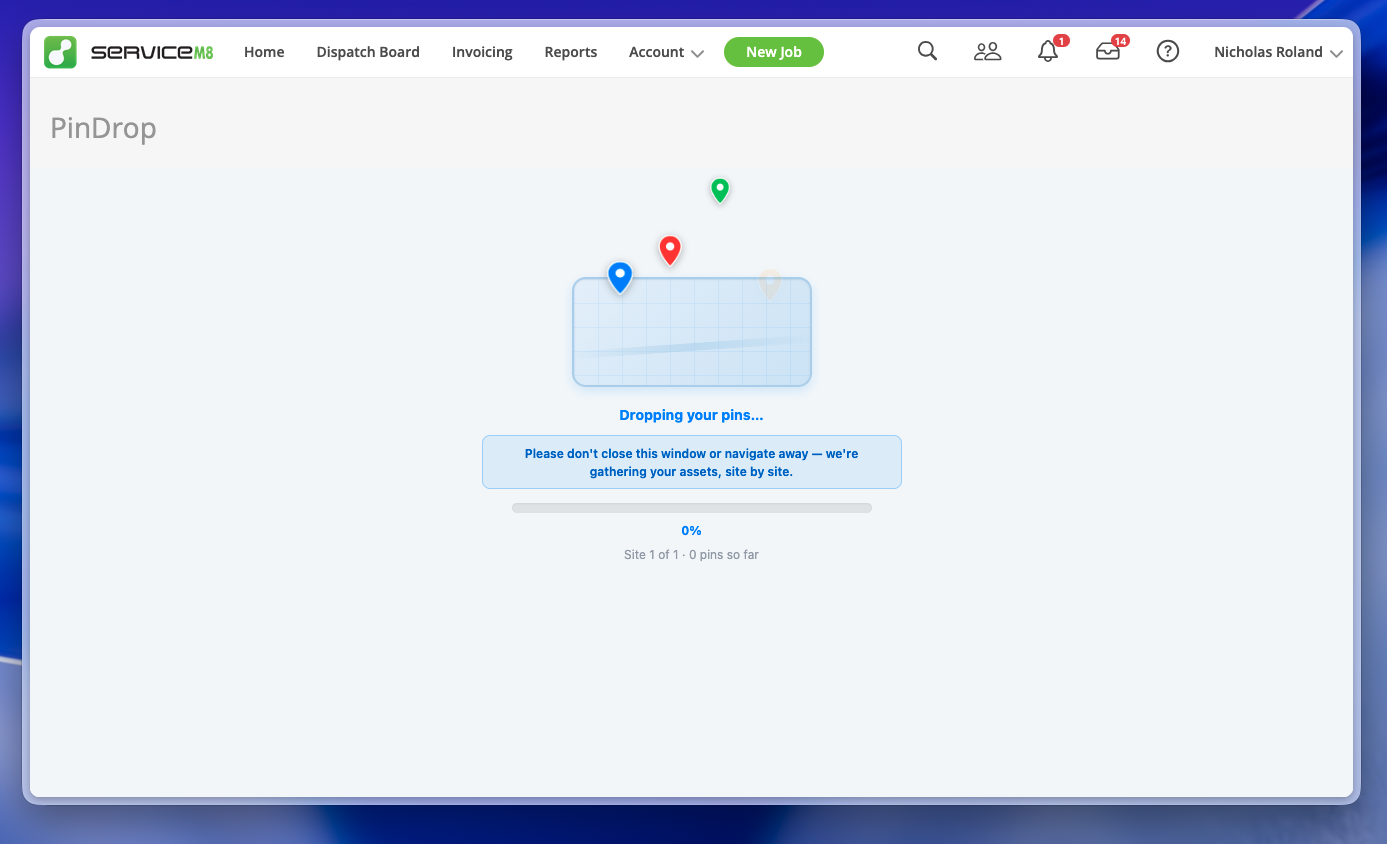
Step 4: View on map
Click View on map. PinDrop loads your selected assets and drops them across the map.
Tip: Your selections are remembered for the session. Click Start over to reset.
Map Controls

| Where | Control | What it does |
|---|---|---|
| Top-left | PinDrop pill | Brand indicator (no action) |
| Top-centre | Search box | Find any asset by name, code, site, or field value |
| Top-centre | Filter button | Add field-based filters (Level, Location, Test status, etc.) |
| Top-centre | PDF button | Export current view as A3 PDF |
| Top-right | Legend | Shows asset types and counts. Click rows to hide/show that type |
| Bottom-left | Map / Sat / 3D | Switch between streets, satellite, and 3D tilt views |
| Bottom-left | ± compass | Standard MapLibre zoom and rotation controls |
| Bottom-right | Back button | Return to the previous wizard step |
Pin Badges
Each pin can show small badges in its top corners to surface status at a glance:
- ✓ Green (top-left): Last test passed
- × Red (top-left): Last test failed
- ? Grey (top-left): No test in the last 12 months
- • Amber (top-right): Asset edited today
- • Green pulsing (top-right): Edited in this session
Common Workflows
Move an asset to a new location
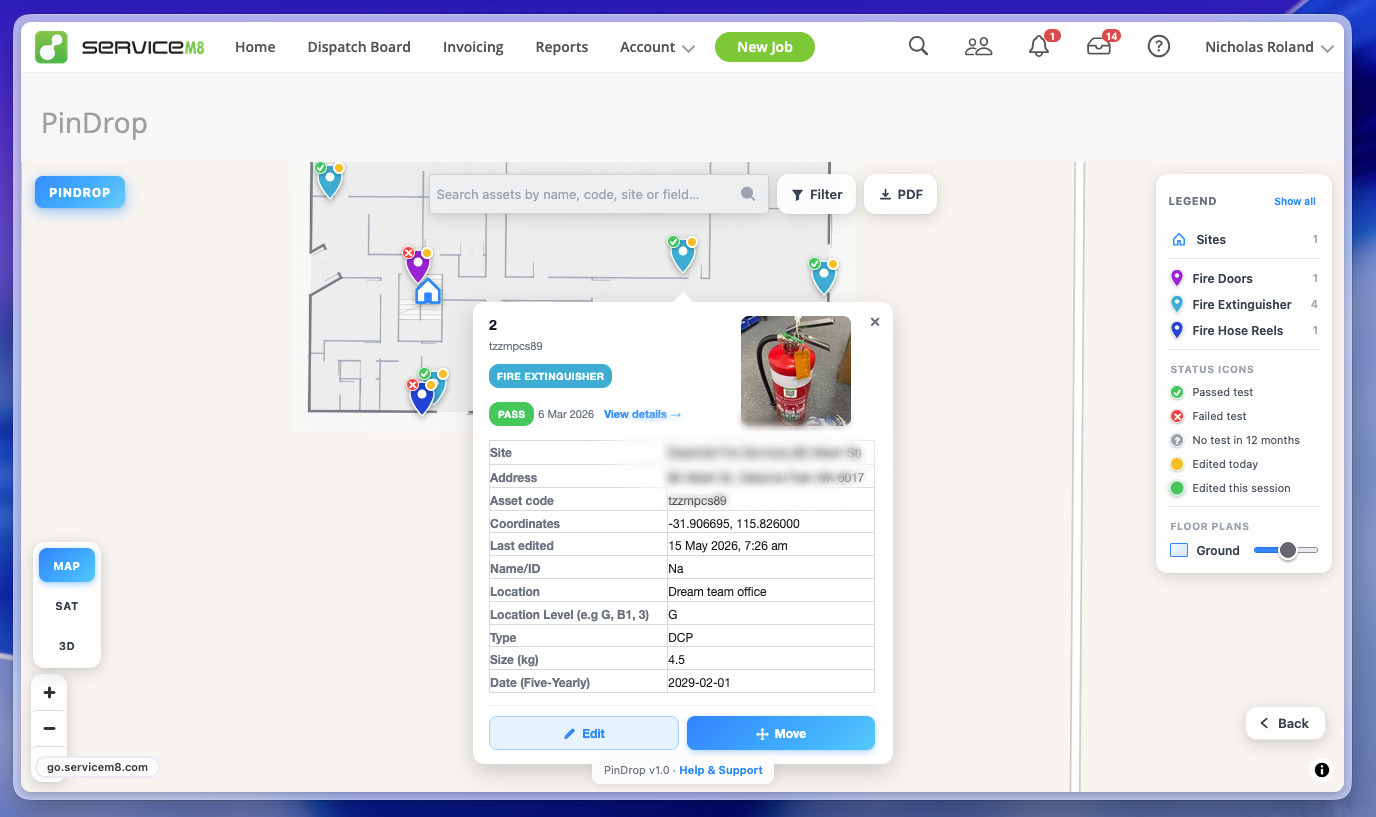
- Click the pin.
- Click Move.
- Drag the pin to its real location. Live coordinates update in the banner.
- Click Save. ServiceM8 updates instantly.
Edit asset details
- Click the pin.
- Click Edit.
- Change any field. Date pickers, dropdowns, and number inputs appear for the right types.
- Click Save changes. ServiceM8 updates instantly. Asset code is read-only by design.
View test results
- Click the pin.
- Click View details next to the status pill.
- The modal shows form responses, photos, who submitted it, and a link back to the original job in ServiceM8.
Upload a building floor plan
- Click the site's home pin, or any pin and look for the site in the legend.
- Click + Add floor plan at the bottom of the site popup.
- Pick a PDF or image. PDFs render automatically to PNG with the white page background made transparent.
- The image floats on screen. Pan and zoom the map until the building walls line up underneath.
- Adjust opacity and name the level (e.g. Ground, Level 1).
- Click Confirm placement. The floor plan is saved against the site.
Multiple plans per site (one per level) are supported. Each shows in the legend with an opacity slider you can adjust at any time.
Floor plans show in OG Portal too
Any floor plan you upload in PinDrop automatically appears in OG Portal. Your clients get a clearer view of where their assets sit on each level, without you having to upload anything twice.
Filter assets
- Click the Filter button in the top toolbar.
- Pick a field from the dropdown.
- For multi-choice fields (20 values or fewer), tick the values you want.
- For free-text fields, type a substring search.
- Add multiple filters for AND logic.
- Click Clear all to reset.
You can also click the Pass/Fail/Untested rows in the legend's "Status icons" key to quickly hide that category.
Export as PDF
- Click the PDF button in the top toolbar.
- Wait a few seconds for the map to capture.
- The PDF downloads automatically with your branded title bar, every visible pin labelled, legend with status key, north compass, and your organisation name.
Stacked pins
When multiple assets share the same exact location (e.g. a stack of fire extinguishers in one cupboard), clicking the stack shows a picker listing every pin at that spot. Pick the one you want and its popup opens.
Troubleshooting
Sites list is empty or loads forever
Re-auth the addon. If still empty, check that you have active customers in ServiceM8. Large ServiceM8 tenants may experience slow load times due to our attempt to conform to the requirements set out for usage of the ServiceM8 API.
Some assets don't appear on the map
The asset needs a valid latitude AND longitude in ServiceM8. Assets with lat 0, lng 0 are treated as "no coordinates" and skipped. Open the asset in ServiceM8 and tap "Get current location" on a mobile device, or use the Move feature in PinDrop to set them visually.
Status badges show ? on every asset
Either the asset has no form responses in the last 12 months, or your form's pass/fail keywords don't match PinDrop's detection list. PinDrop looks for words like pass, fail, good, compliant, broken, defective, needs repair, out of service, etc. in the form answers.
PDF export shows "API 400" or capture error
Switch to streets or satellite view (not 3D) and try again. Some tile providers occasionally tighten CORS rules. The button re-enables after the error.
Loading test statuses takes a long time
For accounts with thousands of form responses across many months, PinDrop fetches one month at a time and stops early once every asset has a status. Patience on first load. Subsequent visits are faster.
Permissions PinDrop Needs
PinDrop requests the following ServiceM8 OAuth scopes:
- Read customers + manage customers — to get the list of sites and save floor plan placements against them.
- Read assets + manage assets — to load your asset register and save coordinate or field updates when you move or edit a pin.
- Read attachments + manage attachments — to load asset photos and upload your floor plans.
- Read forms — to read your test/inspection responses and determine each asset's pass/fail status.
- Read staff — to show which technician submitted a test result in the asset's history.
- Vendor — for analytics tracking only. Sends only your organisation name to Over Geek for usage reporting.
Map Tile Sources & Data Privacy
- Streets via OpenFreeMap (vector tiles, open-source OpenStreetMap data)
- Satellite via Esri World Imagery (free aerial imagery)
- Asset photos and floor plan files never leave ServiceM8's servers. PinDrop loads them via the ServiceM8 attachment API and renders them in the browser.
- No tracking beyond an anonymous addon-usage ping (organisation name + event name only).
Limits & Known Constraints
- Satellite imagery is capped at zoom level 19 (Esri's global maximum). Zoom further to get an upscaled view rather than a "data not available" message.
- PDF floor plans: only page 1 is rendered.
- Asset code is locked. ServiceM8 only allows updating an asset code via the Replace Asset Label feature in the ServiceM8 mobile app. PinDrop respects this and won't let you edit it directly.
- Form responses scanned: last 12 months only.
- Pass/fail detection is keyword-based, not field-mapped. If your form uses unusual terms, ping support and we'll expand the keyword list.
Need Help?
Open the PinDrop footer link in any view, or email us with your ServiceM8 organisation name and a screenshot of the issue.