Help
Rebundle
How to use Rebundle for ServiceM8
What is Rebundle?
Rebundle is a ServiceM8 addon that lives on the job card. It turns the line items already on a job into a reusable Material Bundle. Tick the items you want, name the bundle, and Rebundle saves it straight to your Materials list and attaches it back to the current job. Great for converting old jobs into ready-to-use bundles so the next quote is one click instead of ten.
Currently in Public Beta
Rebundle is free to use during the beta. On launch it becomes a paid subscription at $2.99 AUD/month, billed through ServiceM8. Read the beta terms and install.
Opening Rebundle
Rebundle attaches to job cards, not to clients or the main Add-ons area. Open any job in ServiceM8, click the Add-ons menu in the job toolbar, and pick Rebundle. The Rebundle modal opens with every line item on that job pre-loaded.
Step 1: Pick the Items
The first screen shows every active line item on the job, with unit price. Tick the items you want to roll into your new bundle. Adjust the quantity for each item if you want a different number to what's currently on the job.
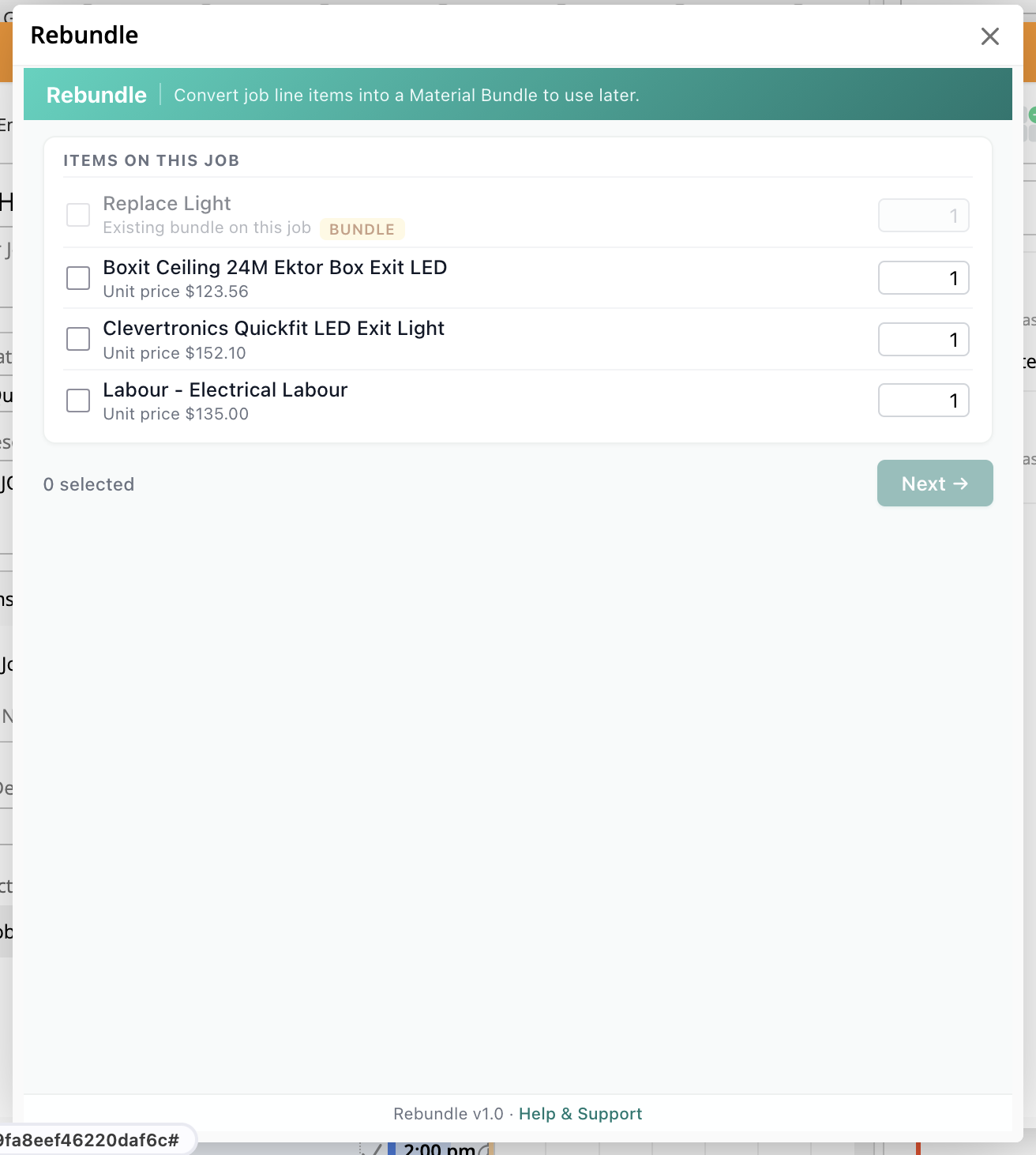
Items already part of an existing bundle on the job are flagged so you don't accidentally double-bundle them.
The counter at the bottom shows how many items you've selected. When you've ticked everything you need, click Next.
Step 2: Name & Create
Give the bundle a Name and an Item number. Both are required so the bundle appears cleanly in your Materials list for future use.
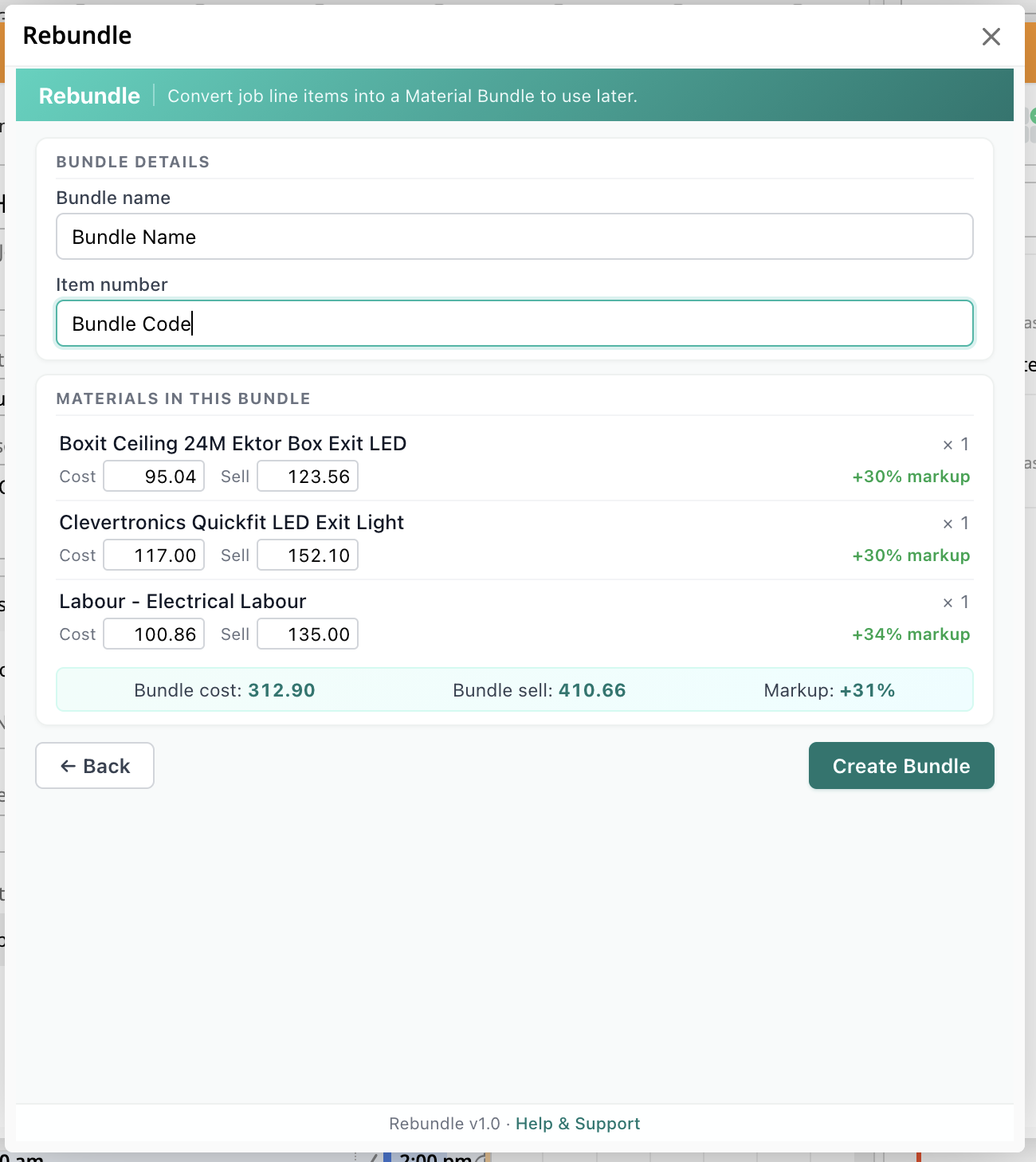
Below the name fields, Rebundle shows you a live summary:
- Per-item: cost, sell, and markup % for each selected material.
- Bundle totals: total cost, total sell, and overall markup %.
You can edit cost or sell on any item before saving. Pricing changes are written back to the master material in your ServiceM8 Materials library, so future jobs use the new figures.
When you're happy, click Create Bundle. Rebundle does three things in one go:
- Creates a new reusable bundle in your ServiceM8 Materials library.
- Pushes any price or cost changes back to the underlying materials.
- Attaches the new bundle to the current job (so the job's totals match before and after).
Using Your New Bundle
Once created, the bundle lives in your normal ServiceM8 Materials library. On the next quote or job, you can pull it in like any other material. One click instead of ten.
Troubleshooting
"Could not determine which job to read"
Rebundle has to be opened from a job card. If you see this error, close the modal and try again from inside a job.
An item is greyed out / can't be ticked
That item is already part of a bundle on this job. Bundling it again would double up the line. Untick it from the existing bundle in ServiceM8 first if you really want to re-bundle it.
"Bundle name is required" or "Item number is required"
Both fields must be filled in before saving. ServiceM8 uses the item number as a unique reference in your Materials library.
The new bundle doesn't show in my Materials list
Refresh ServiceM8. Newly created bundles can take a few seconds to appear in the library view depending on cache.
"Select at least one item to bundle"
You need at least one ticked item before clicking Next. Go back to step 1 and tick what you want.
Permissions Rebundle Needs
Rebundle requests the following ServiceM8 OAuth scopes:
- Read jobs + manage jobs — to attach the new bundle back to the current job.
- Read job materials + manage job materials — to load the line items already on the job and add the new bundle wrapper.
- Read inventory + manage inventory — to create the reusable Material Bundle in your Materials library and update item pricing if you change it.
- Vendor — for analytics tracking only. Sends only your organisation name to Over Geek for usage reporting.
Limits & Known Constraints
- Bundle name and item number are both required by ServiceM8.
- Editing prices in Rebundle writes back to the master materials in your library, not just to this bundle. Be careful if you don't want to change the default pricing.
- The bundle is created on the current job only. You can drop it onto other jobs from your Materials list afterwards.
- Rebundle is read-only on the job until you click Create Bundle. Until then, nothing changes in ServiceM8.
Need Help?
If you run into any issues or have questions, get in touch with your ServiceM8 organisation name and a screenshot.