Help
SpotCheck
How to make sure recurring staff checks get done in ServiceM8
What is SpotCheck?
SpotCheck tracks recurring checks your staff fill in on a ServiceM8 form — a weekly vehicle check, a monthly PPE check, a toolbox talk. You pick the form and how often it’s due, and SpotCheck shows every staff member against every period on a traffic-light grid, sends reminders to anyone outstanding, and flags submissions with failed answers.
Before you start
- You need the check to exist as a ServiceM8 form. SpotCheck works from your existing forms; it doesn’t create them.
- The form doesn’t need to be attached to a job.
- Nothing changes for your staff: they fill the form in exactly as they do now.
Pricing & billing
SpotCheck is $9.99 AUD/month per ServiceM8 company, billed externally from ServiceM8 via Over Geek. It doesn’t change your ServiceM8 plan.
Cancel your subscription before you disconnect
Cancel your subscription from inside SpotCheck before you disconnect or uninstall it. ServiceM8 doesn’t tell us when an add-on is disconnected, so if you skip this step you’ll keep being billed. Having trouble? Let us know and we’ll sort it out.
Opening SpotCheck
SpotCheck is account-wide rather than attached to a job. After installing, open it from Account → Add-ons → SpotCheck. It’s also in the menu of the ServiceM8 mobile app.
The first person to open SpotCheck becomes its admin. That person can then give other staff access (see Access below).
Setting up a spotcheck
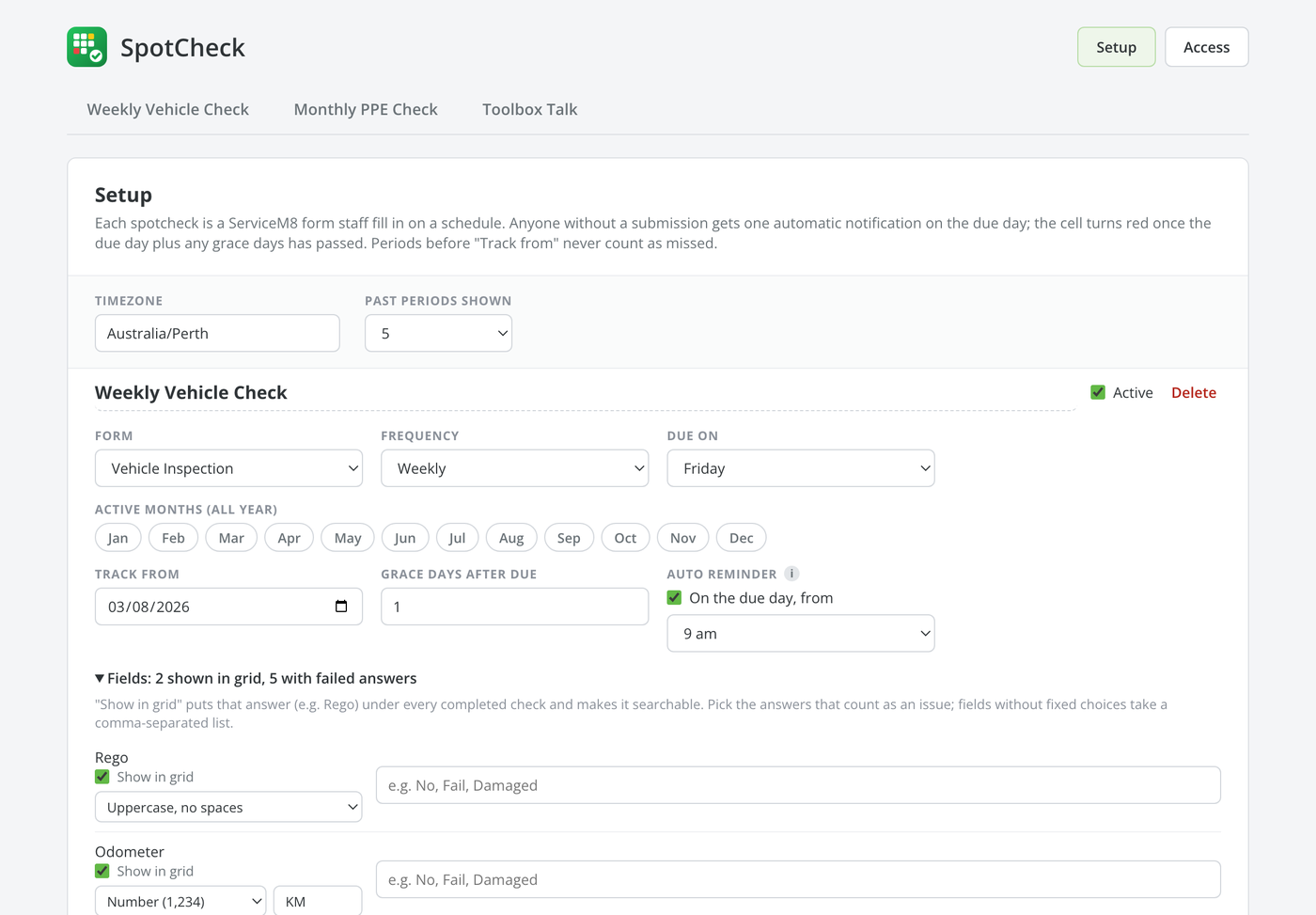
Open Setup and add a spotcheck. Each one has:
- Form — the ServiceM8 form staff fill in.
- Frequency — daily, weekly, fortnightly, monthly, every 2 months, every 6 months or yearly. Daily checks skip weekends by default (“Weekdays only”).
- Due day — for weekly and fortnightly, a weekday; for monthly and longer, a day of the month or the last day.
- Grace days — extra days after the due day before a check counts as missed.
- Auto reminder — on or off, and the hour reminders start on the due day.
- Active months — limit a seasonal check to the months that matter, such as a heat-stress check over summer.
- Track from — defaults to the day you create the spotcheck. Earlier periods show “Before setup” rather than “Missed”.
You can run as many spotchecks as you like; each gets its own tab on the grid. Weeks start on Monday, and all dates use the timezone set in Setup.
Fields: what shows on the grid, and what counts as a fail
Under Fields, tick Show in grid on any answer you want visible at a glance, such as the rego or odometer. It appears under each completed cell, and the search box above the grid matches it.
For each field you can also mark which answers count as a fail — pick them from the field’s choices, or type a comma-separated list for free-text fields. Submissions with failed answers are flagged on the grid and can trigger issue alerts.
Staff
Every active staff member is included by default, and you can untick anyone who shouldn’t be tracked. With Automatically include new staff on, new people are added as they join; turn it off and they start unticked until an admin ticks them.
Reading the grid
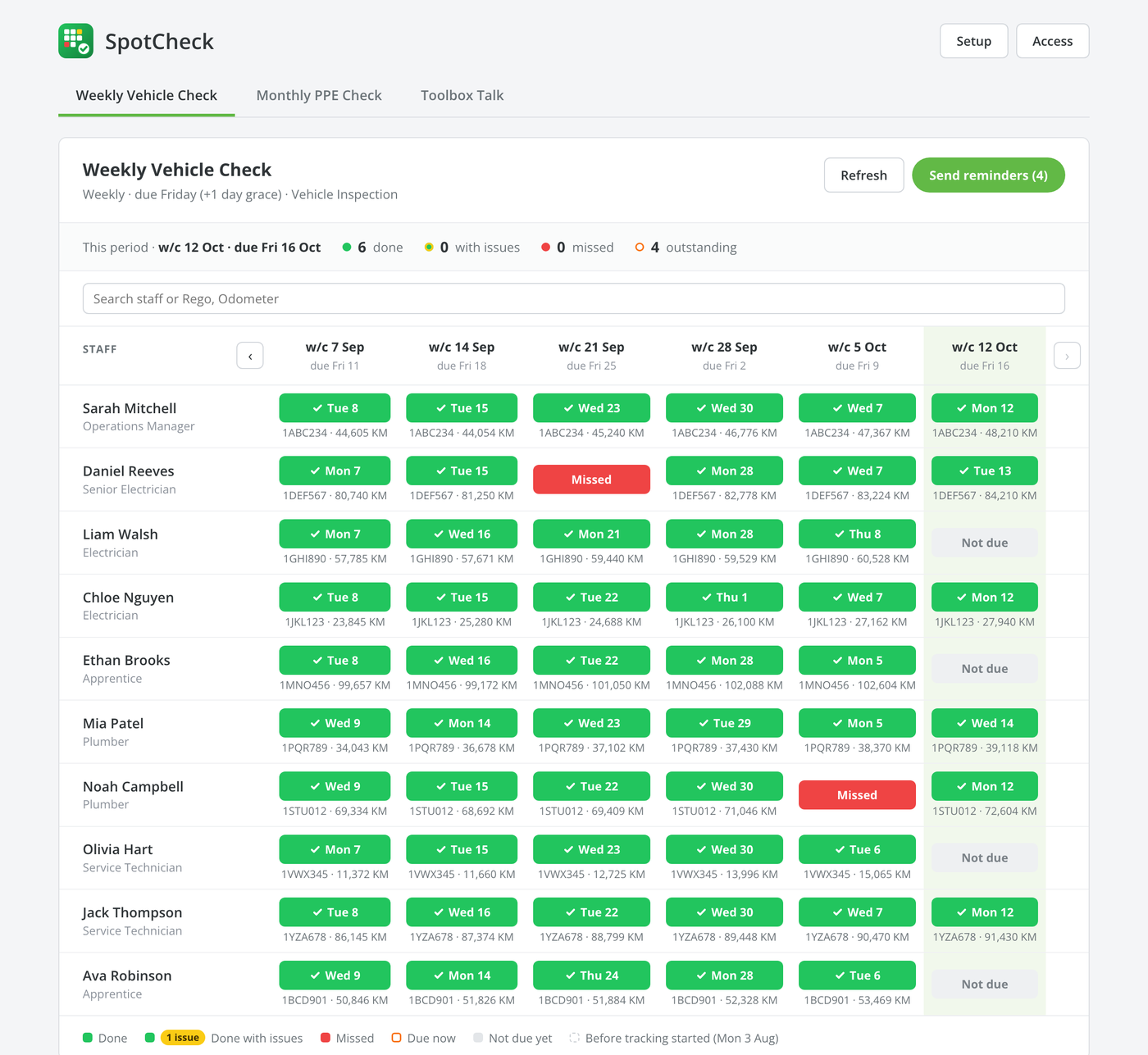
- Green — done.
- Green with a yellow “N issues” badge — done, but with failed answers.
- Red — missed: nothing submitted by the due day plus any grace days.
- Orange outline — due now.
- Grey — not due yet.
The current period is highlighted. Use the ‹ and › arrows to page back through earlier periods, and Back to this period to return. A submission counts towards the period it was made in, so doing a check early still counts.
Reviewing a submission
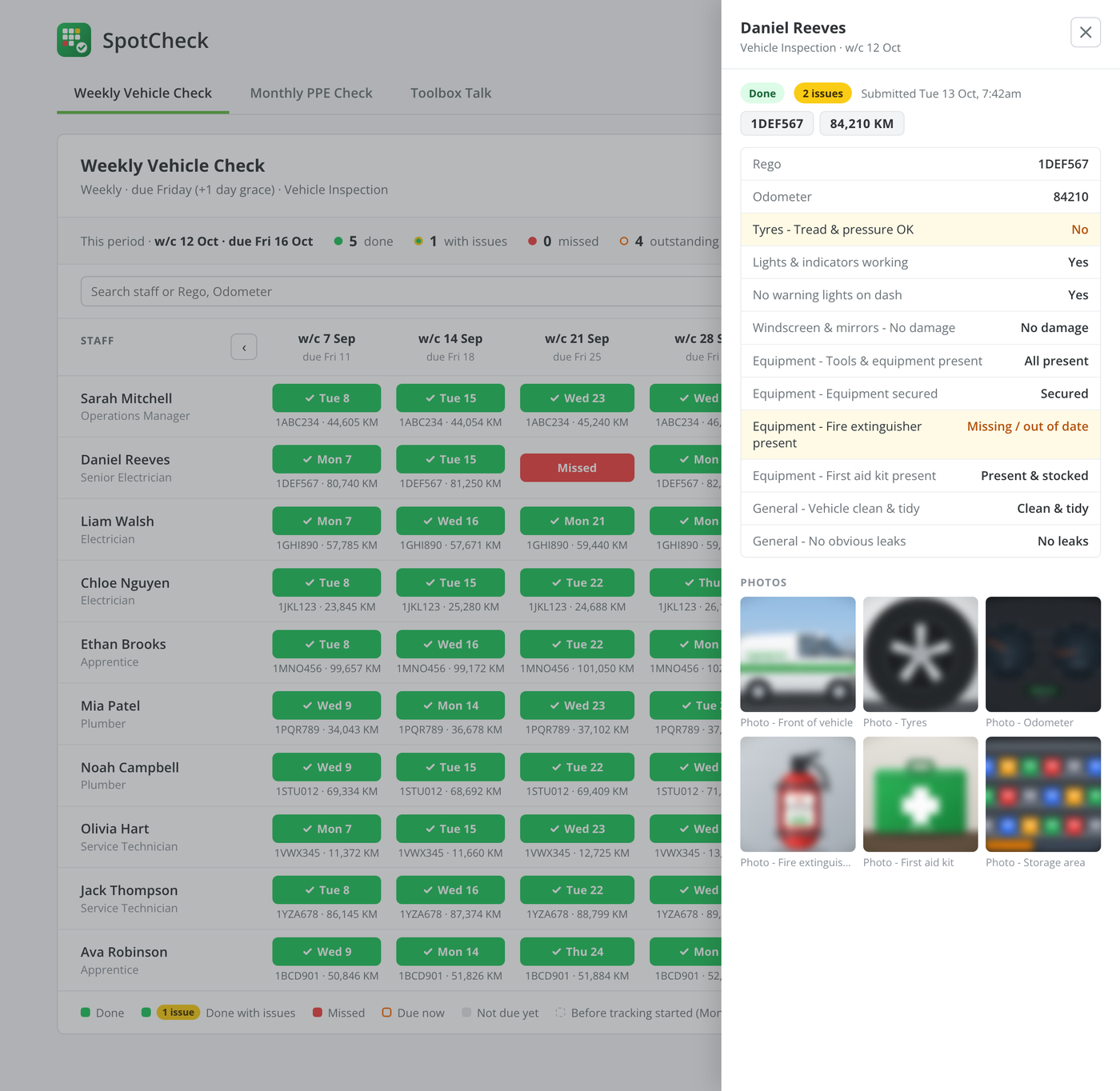
Click any cell to open the submission. Every answer is listed, with failed answers highlighted, and any photos and signatures appear underneath. Click a photo to open it full screen, zoom in, and step through the rest.
Reminders
Send reminders sends a ServiceM8 notification to everyone who hasn’t done this period’s check. To chase one person, open their cell and remind just them. Once someone has been reminded this period their cell shows Reminded, and when everyone outstanding has been reminded the button changes to Everyone reminded.
With Auto reminder on, staff who haven’t done the check get one notification on the due day. It goes out the first time anyone on your team uses ServiceM8 after the reminder hour you chose, rather than at that exact minute.
Issue alerts
Each spotcheck can name people to alert. When a submission comes in with failed answers, they get a ServiceM8 notification straight away listing who submitted it, any shown values such as the rego, and each failed answer. Each submission alerts once.
Access & what staff see
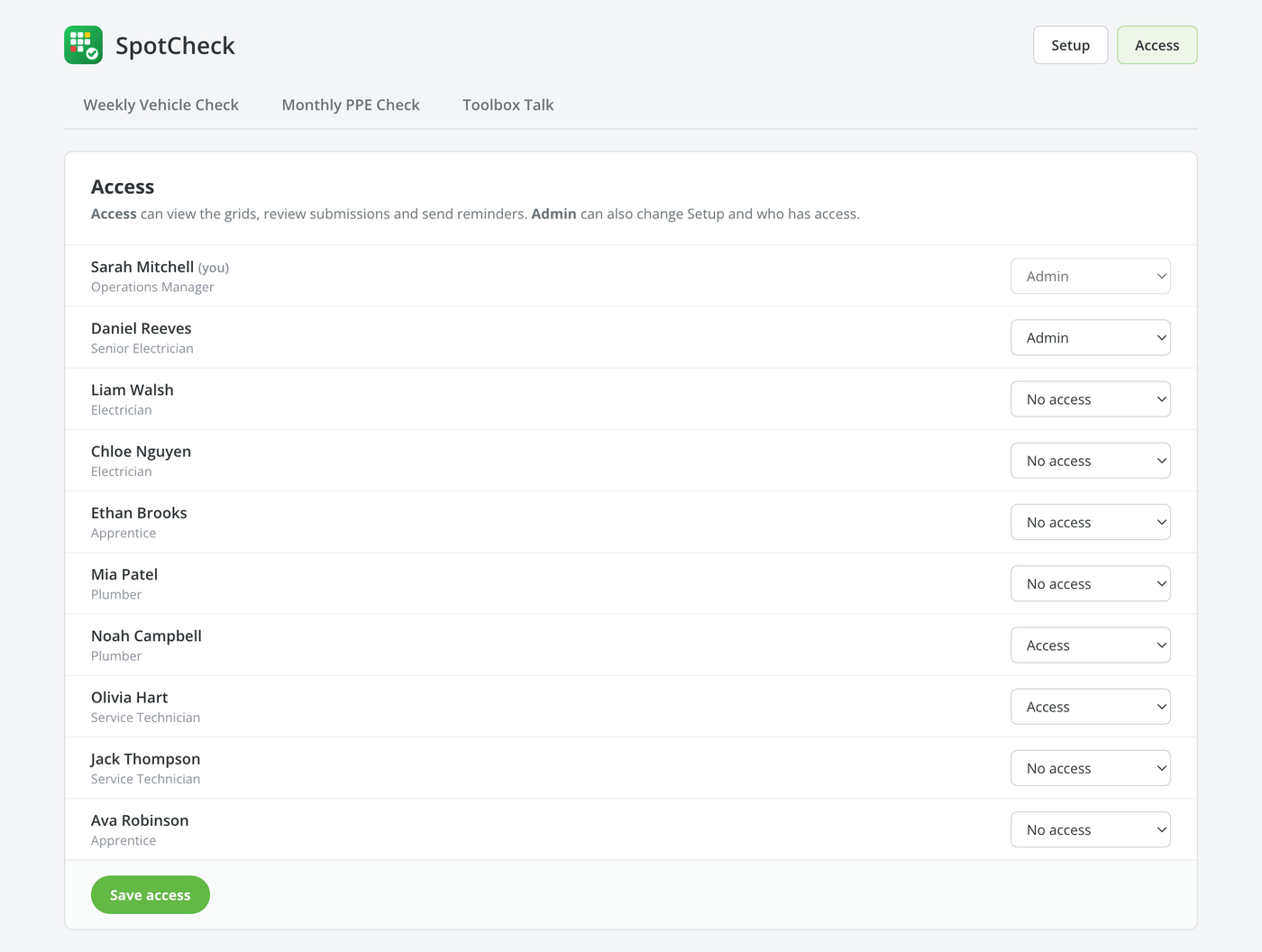
- Admin — the first person to open SpotCheck, plus anyone an admin promotes. Can do everything, including Setup and Access.
- Access — can view the grids, review submissions and send reminders.
- Everyone else sees My checks: their own periods for each spotcheck they’re in, anything they’ve missed, their own submissions, and how to fill the form in.
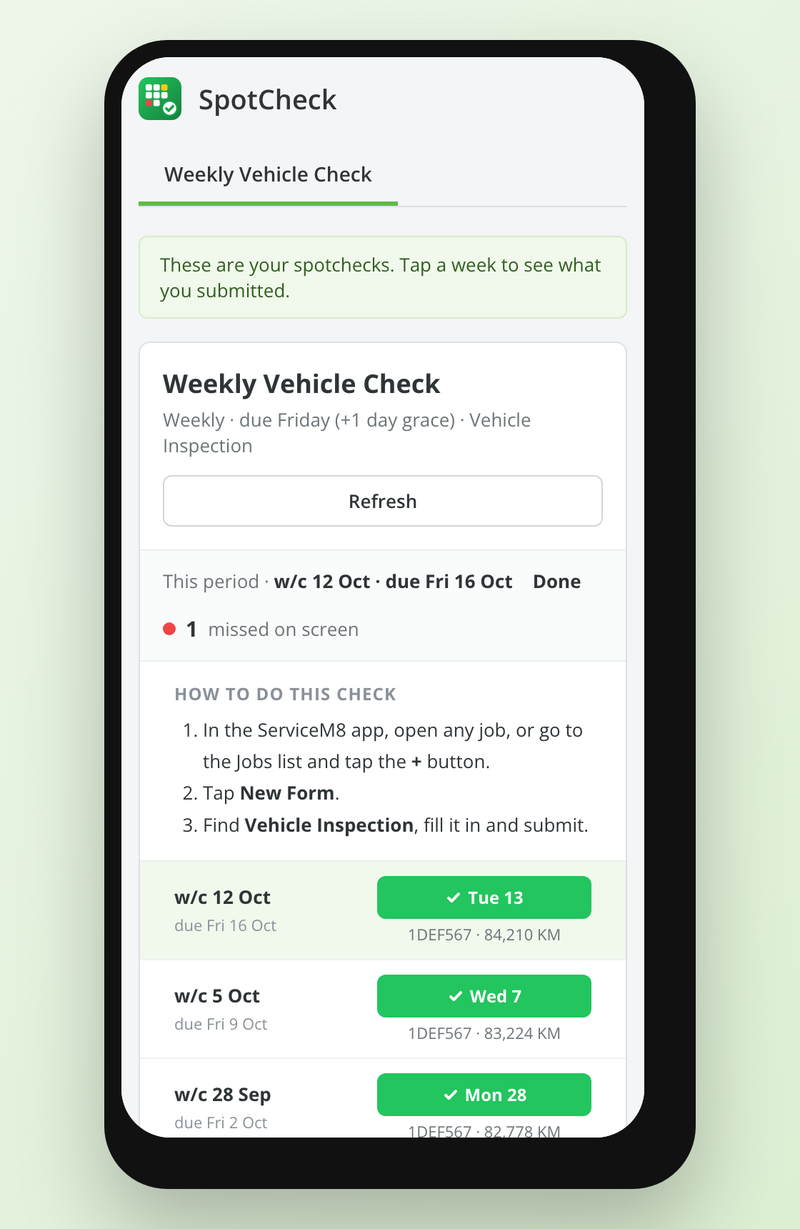
To fill a check in, staff open a job or tap + on the Jobs list, then New Form, then pick the form. An admin can’t remove their own admin rights, and if every admin is made inactive in ServiceM8, the next person to open SpotCheck becomes admin.
Where your data lives
- Submissions stay in ServiceM8 as form responses. SpotCheck reads them when you open the grid or a submission; it keeps no copy.
- Settings — your spotchecks, options, access and the reminder log — are stored on Over Geek’s server.
See our Privacy Policy for the specifics.
Need Help?
If something isn’t working, or you have a check that doesn’t fit the settings, get in touch.